> ## Documentation Index
> Fetch the complete documentation index at: https://kumo.ai/docs/llms.txt
> Use this file to discover all available pages before exploring further.
# Select Tables
Once your connector is set up, the next step is to select the source tables to ingest data into Kumo.
## Connecting a Table
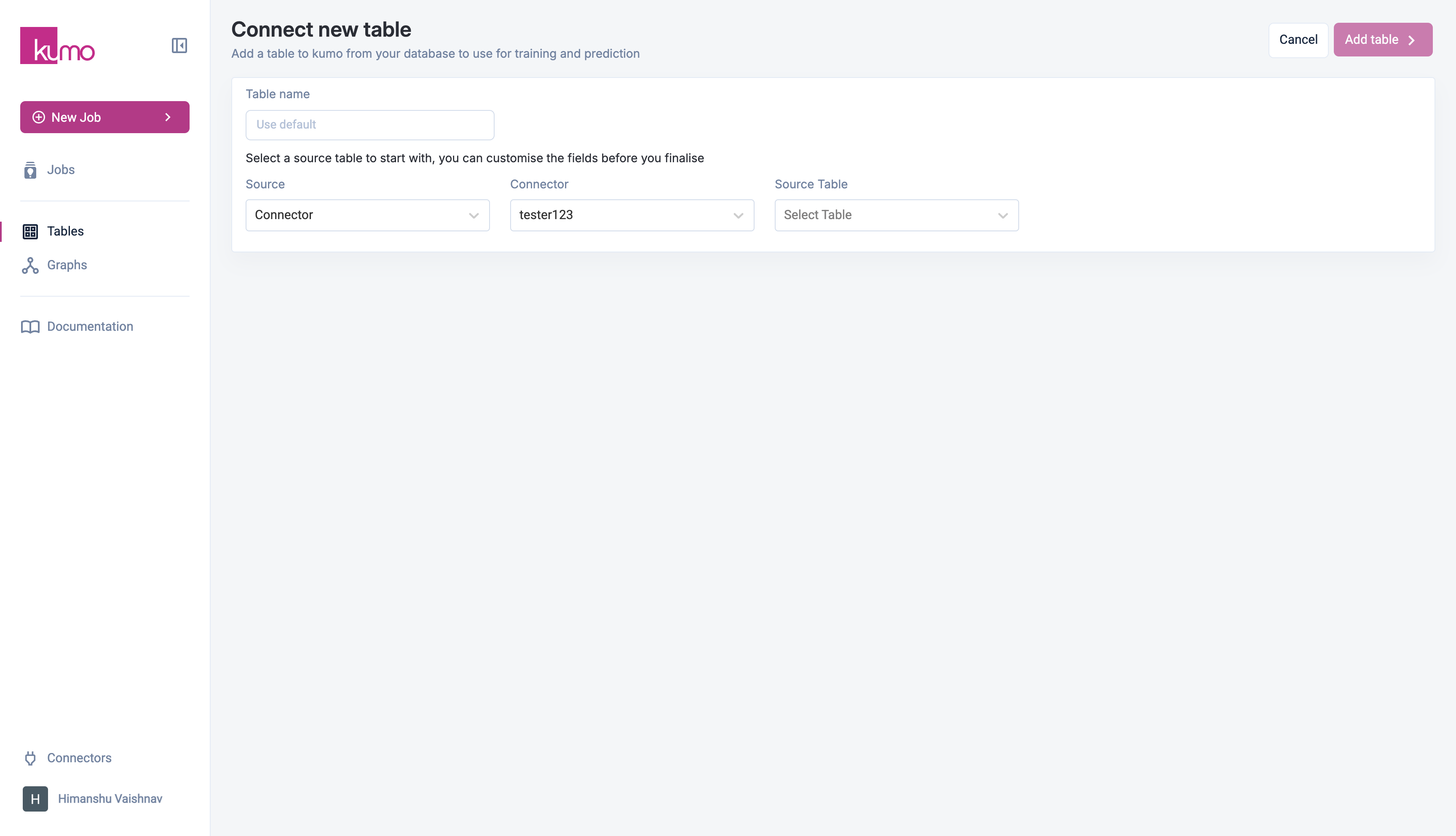
1. Navigate to **Tables** in the side menu and click **Add Table**.
2. Next, select a **Source**:
* **Connector** – Choose an existing data connector.
* [Local Upload](local-data-upload) – Upload a local CSV or Parquet file.
## Selecting a Connector Source
If you choose **Connector** as the source type:
1. Select a connector from the drop-down.
2. Kumo will load available tables in the **Source Table** drop-down.
3. *(For Native Databricks users)* – Enter the **Schema Name** to populate the table list.
 ## Column Selection
For optimal results, you should ensure that any table columns you select for Kumo ingestion meet the following criteria:
* **Clean:** be sure to remove fake/synthetic data, predictions from other ML models, data for which the column definition has constantly changed over time (especially if a particular attribute ID may point to different things over time), and data that is known to be otherwise unreliable or frequently inaccurate.
* **Relevant and Mutually Exclusive:** the larger the graph size (i.e., the sum across the tables in a graph), the larger the compute cost; to optimize training costs, remove columns that provide similar/duplicated information, irrelevant information, and other extraneous data.
* **Complete:** the column should cover the full history across the timeframe in question (e.g., the whole record of purchases/interactions versus a user's first/last purchase, or a subscriber's most recent interaction). If this results in an oversized data set, you can provide Kumo with a compressed version that indicates changes in aggregate metrics over time (e.g., per day/week/month).
> 🚧Using the wrong or unnecessary columns can lead to both degraded model performance (due to noisy pQuery inputs, or worse—due to data leakage), as well as increased pQuery training costs.
## Column Preprocessing
After selecting a table, you can define **column types and preprocessing steps** to ensure proper data handling. For details, see [Column Preprocessing](https://kumo.ai/docs/column-preprocessing/).
## Debugging & Data Validation
To verify a table’s schema and metadata:
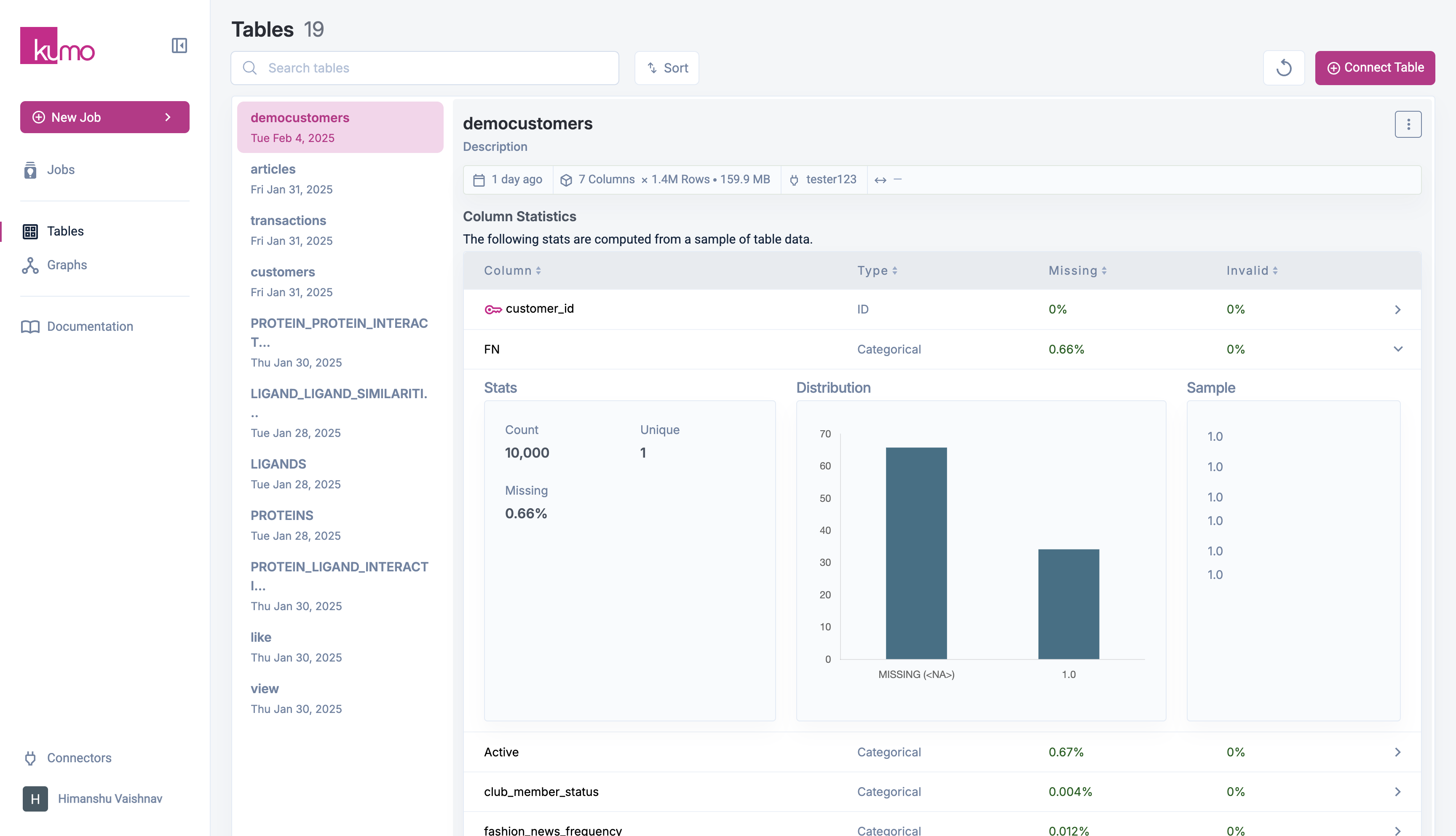
1. Navigate to the **Tables** page.
2. Click on the table name to view details.
3. Click on a **column** to see the detailed **Stats**.
This section provides useful insights, such as:
* **Column statistics** (e.g., missing values, cardinality, distributions).
* **Sample rows** for verification.
Kumo computes this information from a smaller sample of the dataset. Complete statistics are available after full data ingestion during model training.
## Column Selection
For optimal results, you should ensure that any table columns you select for Kumo ingestion meet the following criteria:
* **Clean:** be sure to remove fake/synthetic data, predictions from other ML models, data for which the column definition has constantly changed over time (especially if a particular attribute ID may point to different things over time), and data that is known to be otherwise unreliable or frequently inaccurate.
* **Relevant and Mutually Exclusive:** the larger the graph size (i.e., the sum across the tables in a graph), the larger the compute cost; to optimize training costs, remove columns that provide similar/duplicated information, irrelevant information, and other extraneous data.
* **Complete:** the column should cover the full history across the timeframe in question (e.g., the whole record of purchases/interactions versus a user's first/last purchase, or a subscriber's most recent interaction). If this results in an oversized data set, you can provide Kumo with a compressed version that indicates changes in aggregate metrics over time (e.g., per day/week/month).
> 🚧Using the wrong or unnecessary columns can lead to both degraded model performance (due to noisy pQuery inputs, or worse—due to data leakage), as well as increased pQuery training costs.
## Column Preprocessing
After selecting a table, you can define **column types and preprocessing steps** to ensure proper data handling. For details, see [Column Preprocessing](https://kumo.ai/docs/column-preprocessing/).
## Debugging & Data Validation
To verify a table’s schema and metadata:
1. Navigate to the **Tables** page.
2. Click on the table name to view details.
3. Click on a **column** to see the detailed **Stats**.
This section provides useful insights, such as:
* **Column statistics** (e.g., missing values, cardinality, distributions).
* **Sample rows** for verification.
Kumo computes this information from a smaller sample of the dataset. Complete statistics are available after full data ingestion during model training.
 ### Handling Missing Data
* Kumo treats **blank entries** as missing values.
* It does **not** automatically recognize special strings (`"NaN"`, `"none"`, `"N/A"`) as missing.
* For numeric columns, missing values are often filled with placeholder values (e.g., `-1`). These should be cleared or left blank if you want them treated as missing.
### Handling Missing Data
* Kumo treats **blank entries** as missing values.
* It does **not** automatically recognize special strings (`"NaN"`, `"none"`, `"N/A"`) as missing.
* For numeric columns, missing values are often filled with placeholder values (e.g., `-1`). These should be cleared or left blank if you want them treated as missing.