> ## Documentation Index
> Fetch the complete documentation index at: https://kumo.ai/docs/llms.txt
> Use this file to discover all available pages before exploring further.
# Jupyter in VS Code
> Run Kumo SDK notebooks with Jupyter inside VS Code
# Jupyter in VS Code + Kumo Coding Agent
## Overview
This guide walks you through setting up the **KumoSDK** and **Kumo Coding Agent** for use with the **KumoRFM Pre-Trained** model in **Jupyter notebooks** inside **VS Code**.
This guide assumes minimal prior experience with Jupyter, VS Code, and coding agents. Experienced users may skip directly to relevant sections.
## Prerequisites
Make sure you have:
1. VS Code installed ([Download](https://code.visualstudio.com/download))
2. Python installed at the system level
3. Access to a KumoRFM environment, including an API key and any required API URL
4. VS Code Extensions
* **Python** (by Microsoft)
* **Jupyter Extension Pack** (by Microsoft)
You may also need:
5. OpenAI or Anthropic subscription (recommended - required for use with Kumo Coding Agent)
* **OpenAI Codex** ([Subscribe](https://openai.com/codex))
* **Anthropic Claude Code** ([Subscribe](https://claude.com/product/claude-code))
6. Homebrew (macOS package manager) ([Install](https://brew.sh/))
7. GitHub CLI installed and authenticated (required for installing coding agent skills):
`🖥 Terminal`
```bash theme={null}
brew install gh # install via Homebrew
gh auth status # check if authenticated
gh auth login # authenticate
```
## Part 1: Setup for Jupyter in VS Code + KumoSDK
### Step 1: Create or Open a Jupyter Notebook
To create a new notebook:
1. Open the **Command Palette** (`Cmd + Shift + P`)
2. Search for `Create: New Jupyter Notebook`
3. Save the notebook (e.g., `kumo_notebook.ipynb`)
Click **Select Kernel** in the top-right of the notebook, then select or create a new Python virtual environment.
* Environment type: `Venv` (recommended) or `Conda` (if the Anaconda distribution is installed)
* Select a Python version between **3.10** and **3.13**
Once complete, ensure the selected kernel appears in the top-right of the notebook.
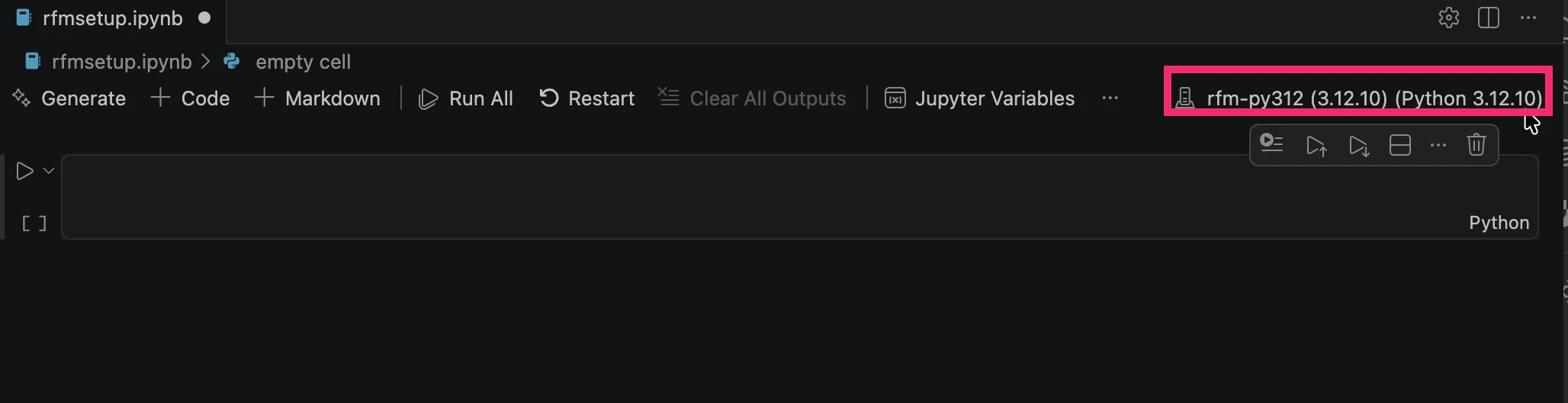 A project-specific interpreter keeps KumoSDK and notebook dependencies separate from your system Python and from unrelated projects.
### Step 2: Install KumoSDK
Install the KumoSDK inside the notebook kernel:
`📓 Notebook cell`
```python theme={null}
%pip install kumoai
```
Using `%pip` instead of `!pip` ensures the package installs into the active notebook kernel.
Verify installation:
`📓 Notebook cell`
```python theme={null}
import kumoai.rfm as rfm
print("Kumo SDK loaded successfully")
```
### Step 3: Authenticate KumoSDK
You will need an API key to make calls to KumoRFM.
There are two common approaches:
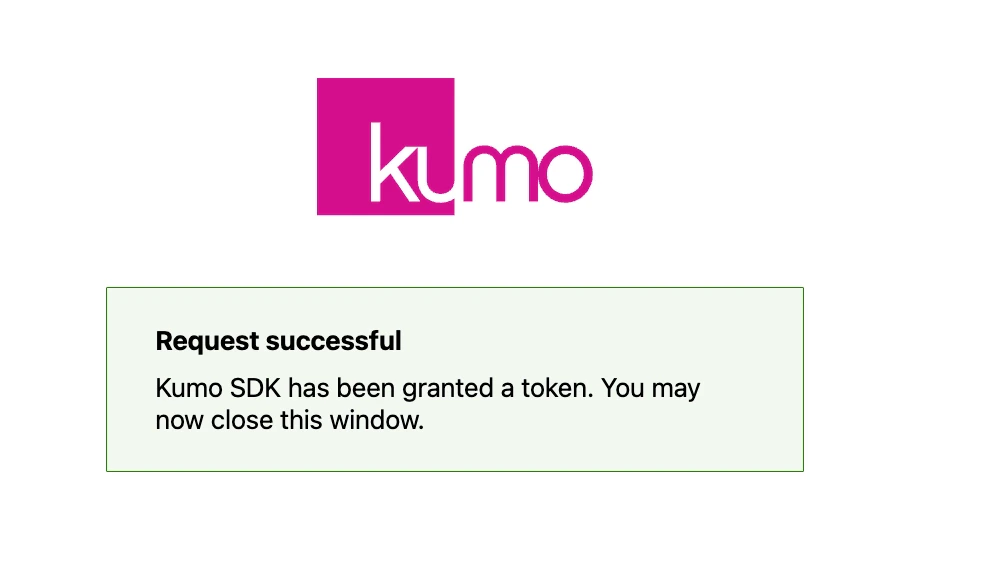
* Use the interactive code block below to set `KUMO_API_KEY` from the notebook
* Set `KUMO_API_KEY` manually with the API key provided for your KumoRFM environment
**Interactive authentication:**
`📓 Notebook cell`
```python theme={null}
import os
import kumoai.rfm as rfm
if not os.environ.get("KUMO_API_KEY"):
rfm.authenticate()
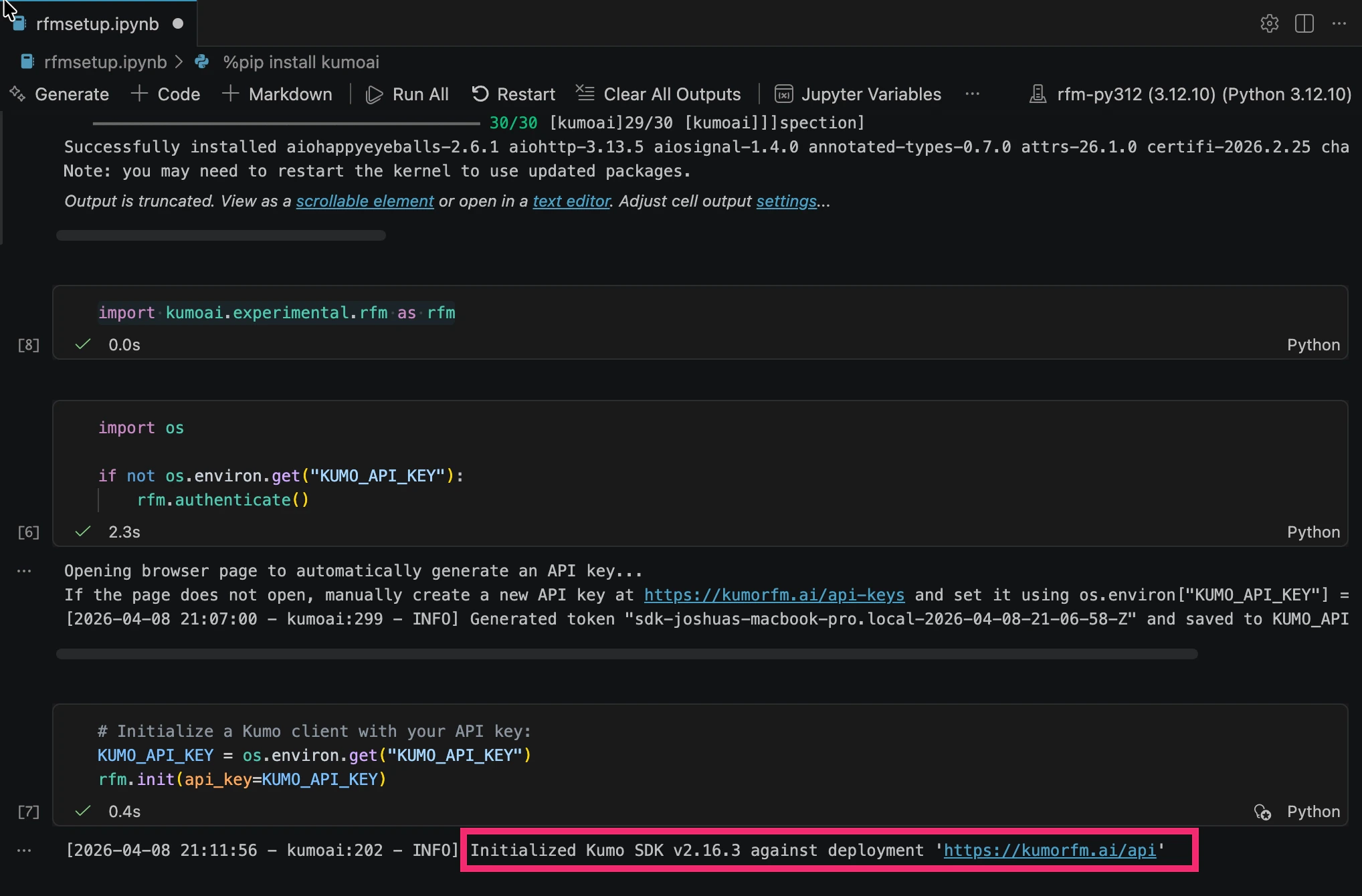
rfm.init(api_key=os.environ.get("KUMO_API_KEY"))
```
A project-specific interpreter keeps KumoSDK and notebook dependencies separate from your system Python and from unrelated projects.
### Step 2: Install KumoSDK
Install the KumoSDK inside the notebook kernel:
`📓 Notebook cell`
```python theme={null}
%pip install kumoai
```
Using `%pip` instead of `!pip` ensures the package installs into the active notebook kernel.
Verify installation:
`📓 Notebook cell`
```python theme={null}
import kumoai.rfm as rfm
print("Kumo SDK loaded successfully")
```
### Step 3: Authenticate KumoSDK
You will need an API key to make calls to KumoRFM.
There are two common approaches:
* Use the interactive code block below to set `KUMO_API_KEY` from the notebook
* Set `KUMO_API_KEY` manually with the API key provided for your KumoRFM environment
**Interactive authentication:**
`📓 Notebook cell`
```python theme={null}
import os
import kumoai.rfm as rfm
if not os.environ.get("KUMO_API_KEY"):
rfm.authenticate()
rfm.init(api_key=os.environ.get("KUMO_API_KEY"))
```
 **Manual authentication:**
`📓 Notebook cell`
```python theme={null}
import os
import kumoai.rfm as rfm
os.environ["KUMO_API_KEY"] = "YOUR_API_KEY_HERE"
rfm.init(api_key=os.environ.get("KUMO_API_KEY"))
```
**Manual authentication:**
`📓 Notebook cell`
```python theme={null}
import os
import kumoai.rfm as rfm
os.environ["KUMO_API_KEY"] = "YOUR_API_KEY_HERE"
rfm.init(api_key=os.environ.get("KUMO_API_KEY"))
```
 ### Step 4: Optional Dependencies
#### Install Graphviz:
The KumoSDK allows you to define and visualize a **Kumo Graph**, which represents data tables and the relationships between them.
To enable Kumo Graph visualization with KumoSDK, the Graphviz library must be installed correctly.
Installation requires:
1. `dot` — an executable that is part of the Graphviz library, installed at the system level
2. The `graphviz` Python package installed in the notebook kernel
Check if `dot` is installed:
`📓 Notebook cell`
```python theme={null}
import shutil
print(shutil.which("dot"))
```
If this returns `None`, install Graphviz:
`🖥 Terminal`
```bash theme={null}
brew install graphviz
```
Install the Python package:
`📓 Notebook cell`
```python theme={null}
%pip install graphviz
```
Test that a simple graph renders:
`📓 Notebook cell`
```python theme={null}
from graphviz import Digraph
g = Digraph()
g.edge("Hello", "Kumo")
g
```
#### Install Jinja2:
The KumoSDK requires Jinja2, a Python library used to style displayed outputs.
`📓 Notebook cell`
```python theme={null}
%pip show Jinja2 # check if Jinja2 is installed
%pip install jinja2 # install
```
## Part 2: Add a Coding Agent (Optional)
Choose **one** of the following to add an AI coding agent to your workflow:
**Step 1: Install Extension**
1. Open VS Code Extensions (`Cmd + Shift + X`)
2. Search for **"Codex – OpenAI’s coding agent"**
3. Install the extension
**Authenticate:**
* Sign in with ChatGPT (recommended)
* Or configure `~/.codex/config.toml`
**Open Codex Chat using:**
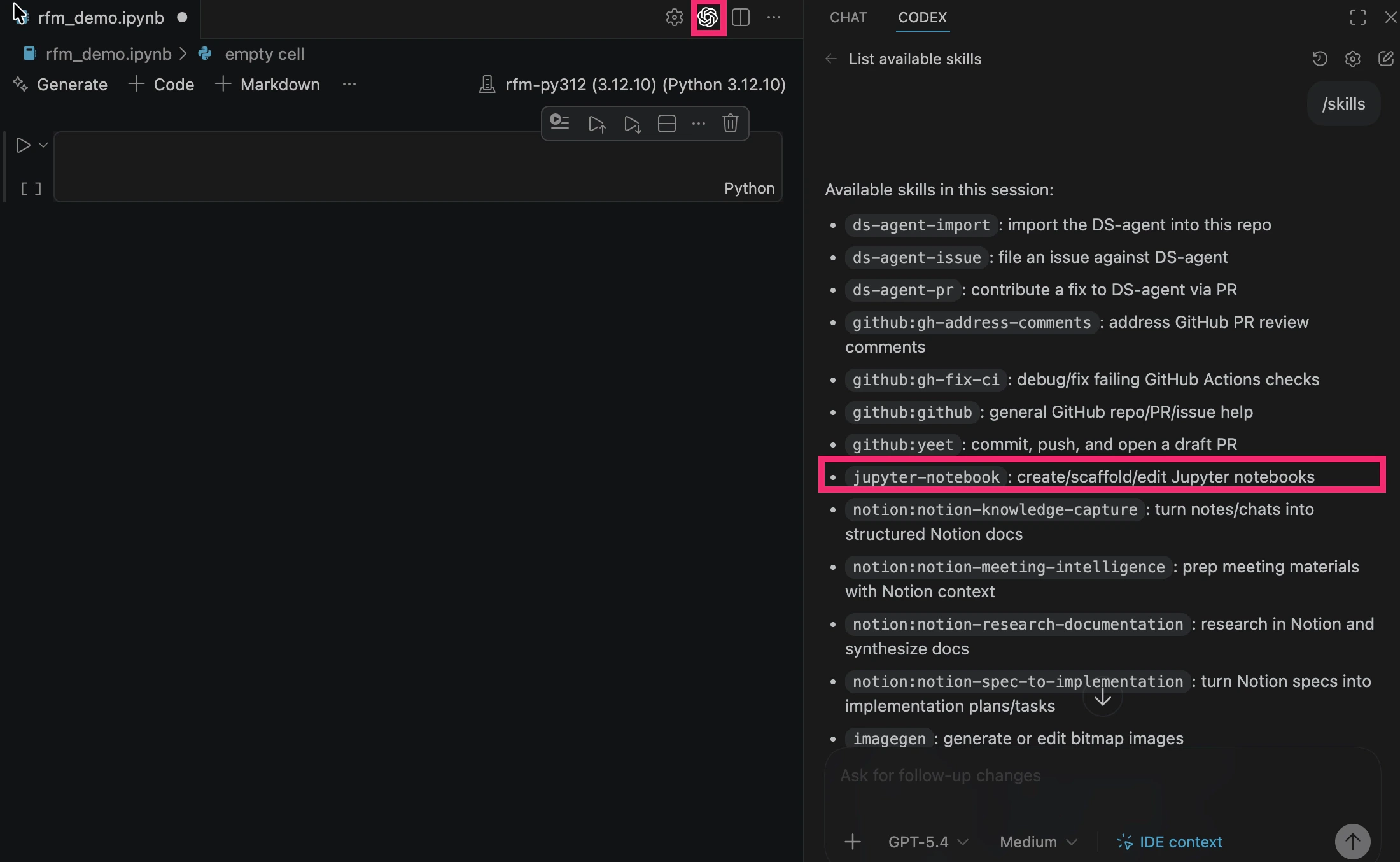
* The ChatGPT icon in the top-right corner added by the plugin
Reload VS Code if the extension does not appear.
**Step 2: Install the Jupyter-Notebook skill**
A Codex skill is a reusable set of instructions and resources that teaches Codex how to carry out a coding workflow consistently. In this case, you will add the Jupyter Notebook skill so Codex can create and modify Jupyter cells.
To check which skills are already available, run the following in Codex:
`🤖 Codex`
```text theme={null}
/skills
```
If the Jupyter Notebook skill is installed, you should see listed:
```text theme={null}
jupyter-notebook: create/scaffold/edit Jupyter notebooks
```
To install the skill, run:
`🤖 Codex`
```text wrap-code theme={null}
$skill-installer install https://github.com/openai/skills/tree/main/skills/.curated/jupyter-notebook
```
Ensure GitHub CLI is installed and authenticated before running the skill installer. See prerequisites.
### Step 4: Optional Dependencies
#### Install Graphviz:
The KumoSDK allows you to define and visualize a **Kumo Graph**, which represents data tables and the relationships between them.
To enable Kumo Graph visualization with KumoSDK, the Graphviz library must be installed correctly.
Installation requires:
1. `dot` — an executable that is part of the Graphviz library, installed at the system level
2. The `graphviz` Python package installed in the notebook kernel
Check if `dot` is installed:
`📓 Notebook cell`
```python theme={null}
import shutil
print(shutil.which("dot"))
```
If this returns `None`, install Graphviz:
`🖥 Terminal`
```bash theme={null}
brew install graphviz
```
Install the Python package:
`📓 Notebook cell`
```python theme={null}
%pip install graphviz
```
Test that a simple graph renders:
`📓 Notebook cell`
```python theme={null}
from graphviz import Digraph
g = Digraph()
g.edge("Hello", "Kumo")
g
```
#### Install Jinja2:
The KumoSDK requires Jinja2, a Python library used to style displayed outputs.
`📓 Notebook cell`
```python theme={null}
%pip show Jinja2 # check if Jinja2 is installed
%pip install jinja2 # install
```
## Part 2: Add a Coding Agent (Optional)
Choose **one** of the following to add an AI coding agent to your workflow:
**Step 1: Install Extension**
1. Open VS Code Extensions (`Cmd + Shift + X`)
2. Search for **"Codex – OpenAI’s coding agent"**
3. Install the extension
**Authenticate:**
* Sign in with ChatGPT (recommended)
* Or configure `~/.codex/config.toml`
**Open Codex Chat using:**
* The ChatGPT icon in the top-right corner added by the plugin
Reload VS Code if the extension does not appear.
**Step 2: Install the Jupyter-Notebook skill**
A Codex skill is a reusable set of instructions and resources that teaches Codex how to carry out a coding workflow consistently. In this case, you will add the Jupyter Notebook skill so Codex can create and modify Jupyter cells.
To check which skills are already available, run the following in Codex:
`🤖 Codex`
```text theme={null}
/skills
```
If the Jupyter Notebook skill is installed, you should see listed:
```text theme={null}
jupyter-notebook: create/scaffold/edit Jupyter notebooks
```
To install the skill, run:
`🤖 Codex`
```text wrap-code theme={null}
$skill-installer install https://github.com/openai/skills/tree/main/skills/.curated/jupyter-notebook
```
Ensure GitHub CLI is installed and authenticated before running the skill installer. See prerequisites.
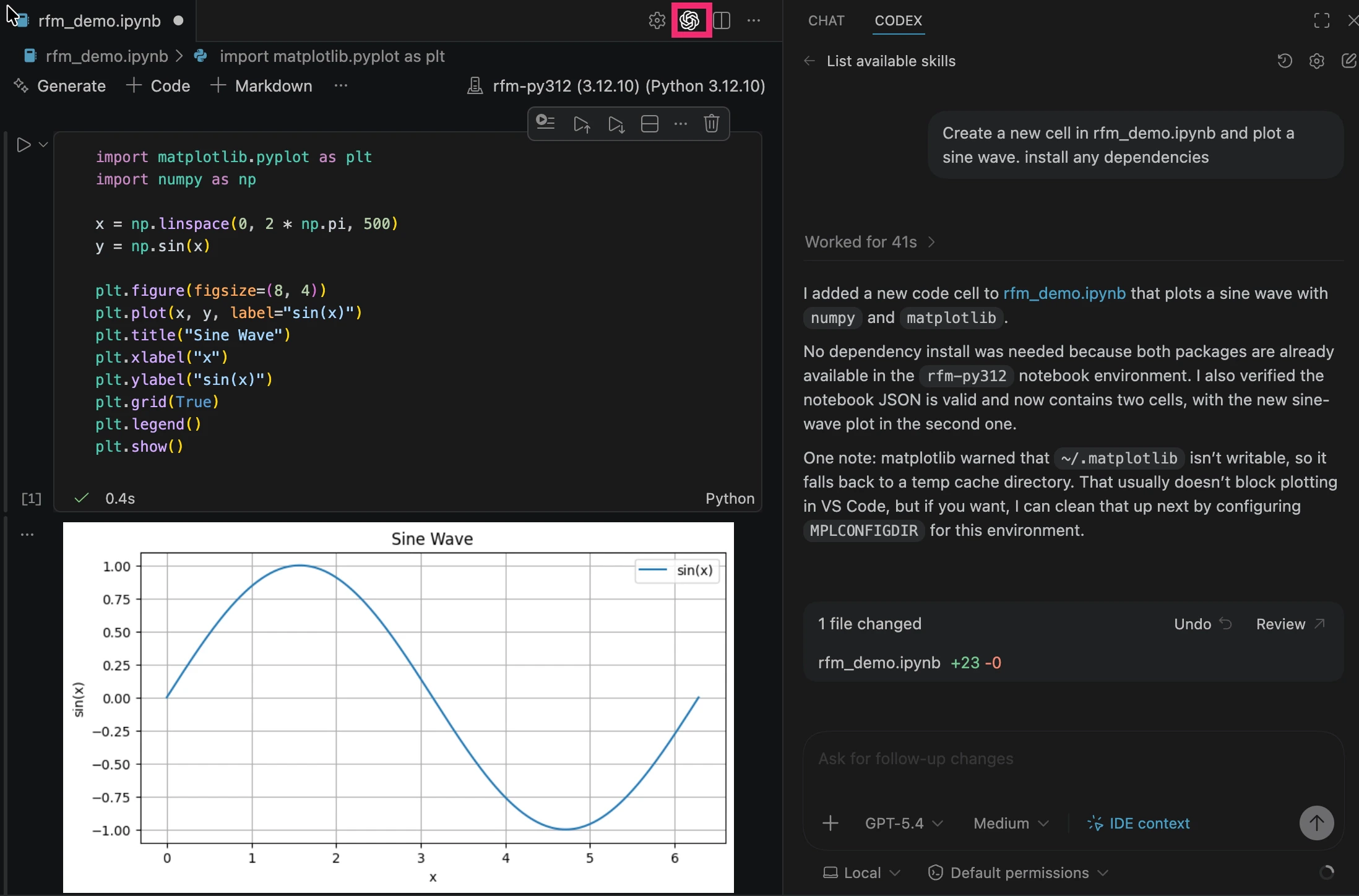
 **Step 3: Verify Codex is Working in Jupyter**
Open the Codex panel and run:
`🤖 Codex`
```text theme={null}
Create a new cell in rfmsetup.ipynb and plot a sine wave
```
**Expected behavior:**
The Codex agent can now modify files and notebooks, but you must still execute notebook cells manually.
**Step 3: Verify Codex is Working in Jupyter**
Open the Codex panel and run:
`🤖 Codex`
```text theme={null}
Create a new cell in rfmsetup.ipynb and plot a sine wave
```
**Expected behavior:**
The Codex agent can now modify files and notebooks, but you must still execute notebook cells manually.
 **Step 4: Install Kumo Coding Agent**
The Kumo Coding Agent has two parts:
* **Context** (knowledge base): Documentation, PQL rules, workflow guides, and data connector references that teach the agent how to use the Kumo platform. Installed by cloning the repository.
* **Skills** (slash commands): Actions like `/kumo-issue` and `/kumo-pr` for reporting bugs and contributing fixes. Installed via the skill installer.
**Install the context:**
`🖥 Terminal`
```bash theme={null}
cd your-project
git clone https://github.com/kumo-ai/kumo-coding-agent.git kumo-coding-agent
```
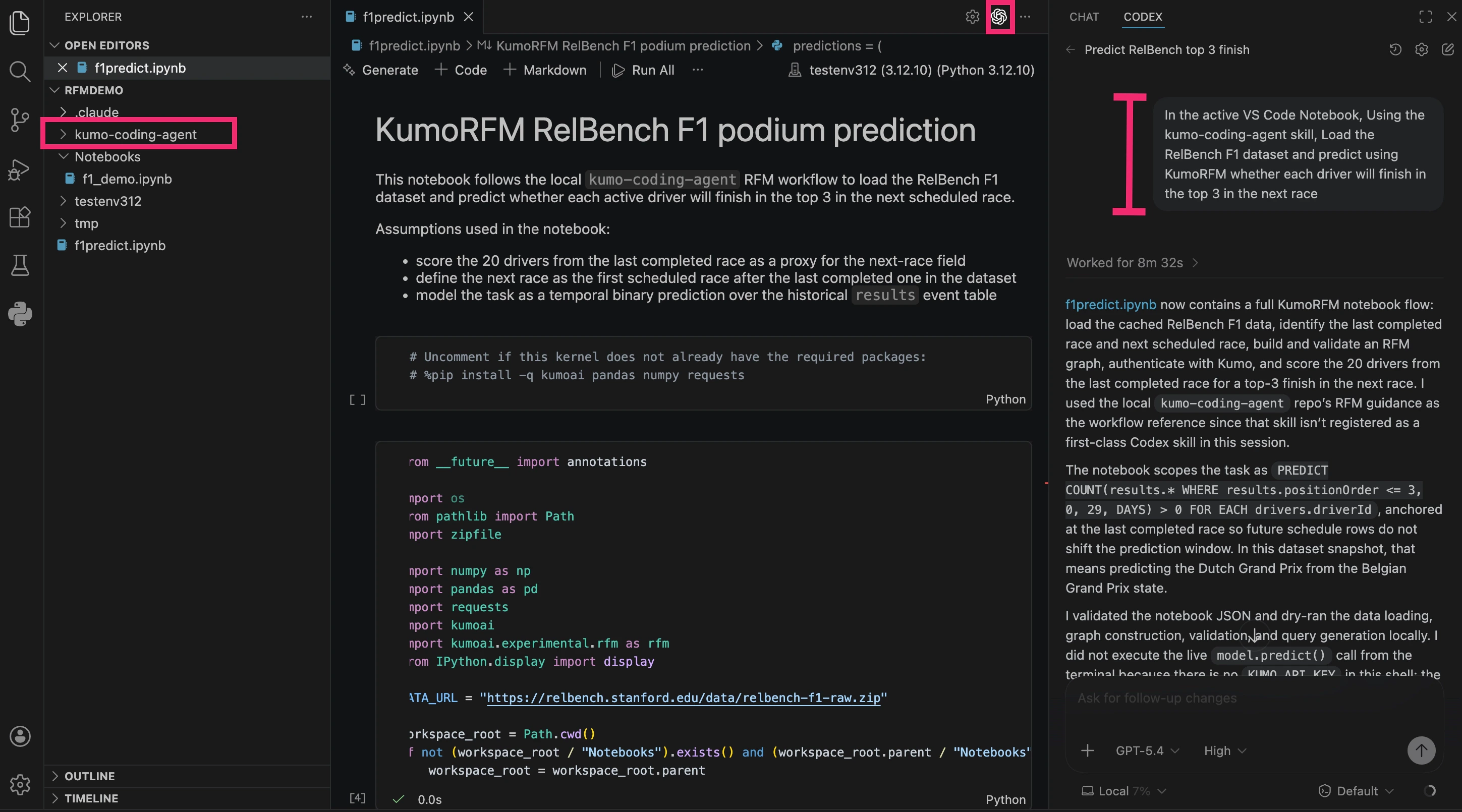
This action adds a directory named `kumo-coding-agent` to your project. It contains the Kumo Coding Agent's knowledge base. Confirm that this directory appears in your project.
Codex reads `AGENTS.md` automatically. No extra configuration needed.
**Install the skills (optional).** Inside a Codex session:
`🤖 Codex`
```text theme={null}
$skill-installer install https://github.com/kumo-ai/kumo-coding-agent
```
**Step 5: Use the Kumo Coding Agent**
Try a real prediction:
`🤖 Codex`
```text wrap-code theme={null}
Use the active VS Code notebook with the kumo-coding-agent skill to load the RelBench F1 dataset and use KumoRFM to predict whether each driver will finish in the top 3 in their next race.
```
The agent will inspect the data, build a graph, and write PQL. You can then run the notebook end-to-end. If needed, authenticate the KumoSDK within the notebook before running the prediction.
**Step 4: Install Kumo Coding Agent**
The Kumo Coding Agent has two parts:
* **Context** (knowledge base): Documentation, PQL rules, workflow guides, and data connector references that teach the agent how to use the Kumo platform. Installed by cloning the repository.
* **Skills** (slash commands): Actions like `/kumo-issue` and `/kumo-pr` for reporting bugs and contributing fixes. Installed via the skill installer.
**Install the context:**
`🖥 Terminal`
```bash theme={null}
cd your-project
git clone https://github.com/kumo-ai/kumo-coding-agent.git kumo-coding-agent
```
This action adds a directory named `kumo-coding-agent` to your project. It contains the Kumo Coding Agent's knowledge base. Confirm that this directory appears in your project.
Codex reads `AGENTS.md` automatically. No extra configuration needed.
**Install the skills (optional).** Inside a Codex session:
`🤖 Codex`
```text theme={null}
$skill-installer install https://github.com/kumo-ai/kumo-coding-agent
```
**Step 5: Use the Kumo Coding Agent**
Try a real prediction:
`🤖 Codex`
```text wrap-code theme={null}
Use the active VS Code notebook with the kumo-coding-agent skill to load the RelBench F1 dataset and use KumoRFM to predict whether each driver will finish in the top 3 in their next race.
```
The agent will inspect the data, build a graph, and write PQL. You can then run the notebook end-to-end. If needed, authenticate the KumoSDK within the notebook before running the prediction.
 Before asking Codex to modify the notebook, save your changes first. If the notebook is not saved, VS Code may keep your unsaved version as the active notebook view and treat Codex's edits as the previous file version. If you do not see Codex's changes, try one of the following:
* Use the "Revert File" option in VS Code to refresh the notebook (`Cmd + Shift + P` -> `Revert File`)
* Close the notebook tab and reopen it
You are now fully set up with KumoSDK and the Kumo Coding Agent. You can proceed to:
* the Kumo `Coding Agent Quick Start` for coding agent examples
* the Kumo `SDK Quick Start` to get familiar with core SDK functionality
**Step 6 (Optional): Upgrade**
**Upgrade the KumoSDK:**
`📓 Notebook cell`
```python theme={null}
%pip install --upgrade kumoai
```
**Upgrade the Kumo Coding Agent:**
`🖥 Terminal`
```bash theme={null}
cd kumo-coding-agent && git pull
```
To pin to a specific version:
```bash theme={null}
cd kumo-coding-agent && git checkout v1.0.0
```
**Step 1: Install Extension**
1. Open VS Code Extensions (`Cmd + Shift + X`)
2. Search for **"Claude Code"** (by Anthropic)
3. Install the extension
**Authenticate:**
* Sign in with your Anthropic account when prompted
**Open Claude Code using either:**
* The Anthropic spark icon in the sidebar
* The Anthropic spark icon in the top-right corner
* `Cmd + Shift + P` -> `Claude Code: Open`
Reload VS Code if the extension does not appear.
**Step 2: Install Kumo Coding Agent**
The Kumo Coding Agent has two parts:
* **Context** (knowledge base): Documentation, PQL rules, workflow guides, and data connector references that teach the agent how to use the Kumo platform. Installed by cloning the repository.
* **Skills** (slash commands): Actions like `/kumo-issue` and `/kumo-pr` for reporting bugs and contributing fixes. Installed via `npx skills add`.
**Install the context:**
`🖥 Terminal`
```bash theme={null}
cd your-project
git clone https://github.com/kumo-ai/kumo-coding-agent.git kumo-coding-agent
echo 'Also read kumo-coding-agent/CLAUDE.md for Kumo agent capabilities.' >> CLAUDE.md
```
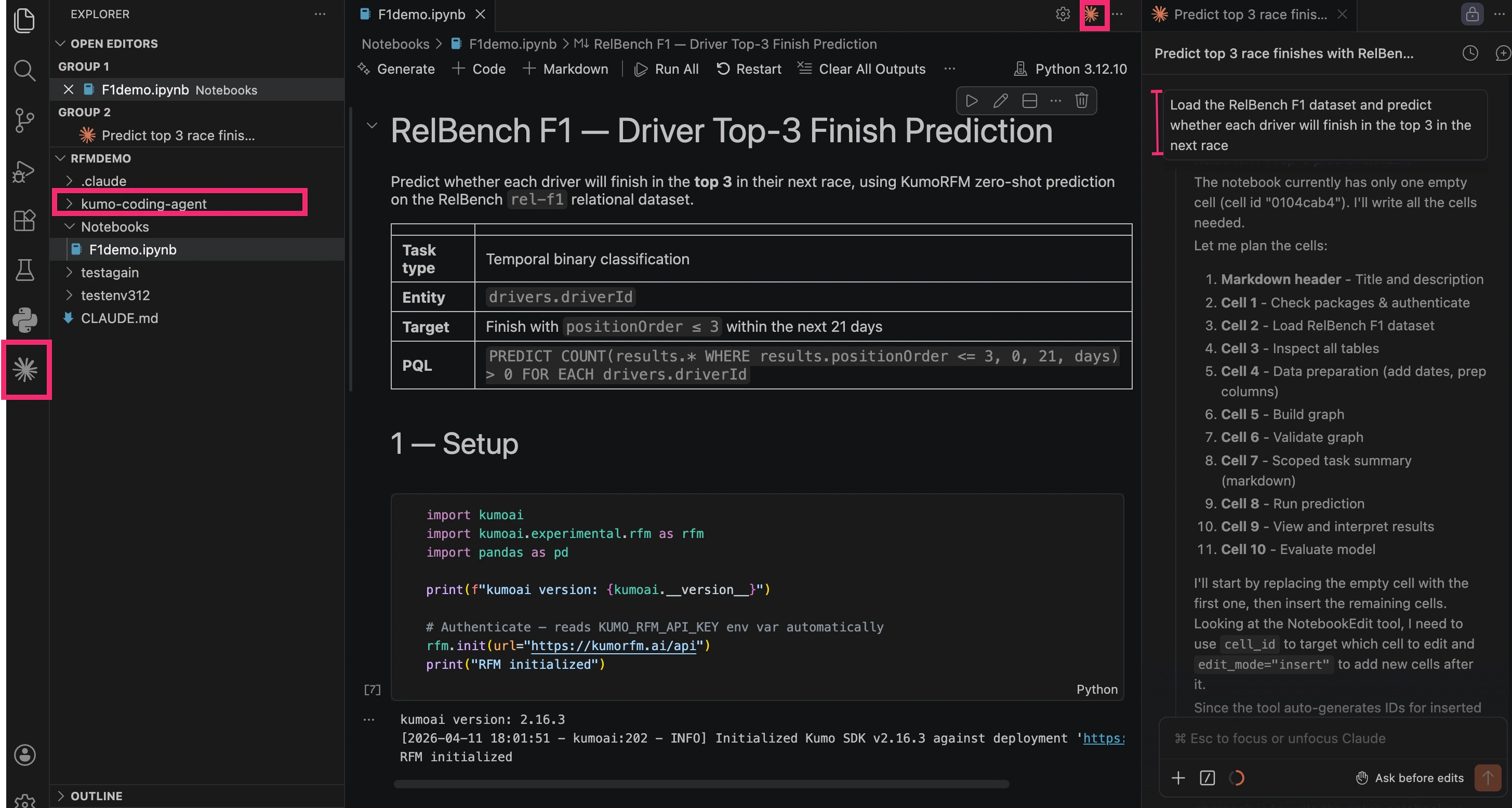
This action adds a directory named `kumo-coding-agent` to your project. It contains the Kumo Coding Agent's knowledge base. Confirm that this directory appears in your project.
The second line tells Claude Code to read the agent's knowledge base on startup.
**Install the skills (optional):**
To run the following command you will need node.js installed on your system
`🖥 Terminal`
```bash theme={null}
npx skills add kumo-ai/kumo-coding-agent --agent claude-code
```
**Step 3: Use the Kumo Coding Agent**
Try a real prediction:
`✨ Claude`
```text wrap-code theme={null}
Use the active VS Code notebook with the kumo-coding-agent skill to load the RelBench F1 dataset and use KumoRFM to predict whether each driver will finish in the top 3 in their next race.
```
The agent will inspect the data, build a graph, and write PQL. You can then run the notebook end-to-end. If needed, authenticate the KumoSDK within the notebook before running the prediction.
Before asking Codex to modify the notebook, save your changes first. If the notebook is not saved, VS Code may keep your unsaved version as the active notebook view and treat Codex's edits as the previous file version. If you do not see Codex's changes, try one of the following:
* Use the "Revert File" option in VS Code to refresh the notebook (`Cmd + Shift + P` -> `Revert File`)
* Close the notebook tab and reopen it
You are now fully set up with KumoSDK and the Kumo Coding Agent. You can proceed to:
* the Kumo `Coding Agent Quick Start` for coding agent examples
* the Kumo `SDK Quick Start` to get familiar with core SDK functionality
**Step 6 (Optional): Upgrade**
**Upgrade the KumoSDK:**
`📓 Notebook cell`
```python theme={null}
%pip install --upgrade kumoai
```
**Upgrade the Kumo Coding Agent:**
`🖥 Terminal`
```bash theme={null}
cd kumo-coding-agent && git pull
```
To pin to a specific version:
```bash theme={null}
cd kumo-coding-agent && git checkout v1.0.0
```
**Step 1: Install Extension**
1. Open VS Code Extensions (`Cmd + Shift + X`)
2. Search for **"Claude Code"** (by Anthropic)
3. Install the extension
**Authenticate:**
* Sign in with your Anthropic account when prompted
**Open Claude Code using either:**
* The Anthropic spark icon in the sidebar
* The Anthropic spark icon in the top-right corner
* `Cmd + Shift + P` -> `Claude Code: Open`
Reload VS Code if the extension does not appear.
**Step 2: Install Kumo Coding Agent**
The Kumo Coding Agent has two parts:
* **Context** (knowledge base): Documentation, PQL rules, workflow guides, and data connector references that teach the agent how to use the Kumo platform. Installed by cloning the repository.
* **Skills** (slash commands): Actions like `/kumo-issue` and `/kumo-pr` for reporting bugs and contributing fixes. Installed via `npx skills add`.
**Install the context:**
`🖥 Terminal`
```bash theme={null}
cd your-project
git clone https://github.com/kumo-ai/kumo-coding-agent.git kumo-coding-agent
echo 'Also read kumo-coding-agent/CLAUDE.md for Kumo agent capabilities.' >> CLAUDE.md
```
This action adds a directory named `kumo-coding-agent` to your project. It contains the Kumo Coding Agent's knowledge base. Confirm that this directory appears in your project.
The second line tells Claude Code to read the agent's knowledge base on startup.
**Install the skills (optional):**
To run the following command you will need node.js installed on your system
`🖥 Terminal`
```bash theme={null}
npx skills add kumo-ai/kumo-coding-agent --agent claude-code
```
**Step 3: Use the Kumo Coding Agent**
Try a real prediction:
`✨ Claude`
```text wrap-code theme={null}
Use the active VS Code notebook with the kumo-coding-agent skill to load the RelBench F1 dataset and use KumoRFM to predict whether each driver will finish in the top 3 in their next race.
```
The agent will inspect the data, build a graph, and write PQL. You can then run the notebook end-to-end. If needed, authenticate the KumoSDK within the notebook before running the prediction.
 Before asking Claude to modify the notebook, save your changes first. If the notebook is not saved, VS Code may keep your unsaved version as the active notebook view and treat Claude's edits as the previous file version. If you do not see Claude's changes, try one of the following:
* Use the "Revert File" option in VS Code to refresh the notebook (`Cmd + Shift + P` -> `Revert File`)
* Close the notebook tab and reopen it
You are now fully set up with KumoSDK and the Kumo Coding Agent. You can proceed to:
* the Kumo `Coding Agent Quick Start` for coding agent examples
* the Kumo `SDK Quick Start` to get familiar with core SDK functionality
**Step 4 (Optional): Upgrade**
**Upgrade KumoSDK:**
`📓 Notebook cell`
```python theme={null}
%pip install --upgrade kumoai
```
**Upgrade the Kumo Coding Agent:**
`🖥 Terminal`
```bash theme={null}
cd kumo-coding-agent && git pull
```
To pin to a specific version:
```bash theme={null}
cd kumo-coding-agent && git checkout v1.0.0
```
## Troubleshooting
### Notebook does not run
* Ensure the Jupyter extension is installed
* Ensure a kernel is selected
* Ensure Python version is 3.10–3.13
### Kernel does not appear
* Restart VS Code
* Reopen the notebook
* Install `ipykernel`
### Wrong Python environment
* Re-select the kernel from **Python Environments**
### `kumoai` cannot be imported
`📓 Notebook cell`
```python theme={null}
%pip install kumoai
```
Restart the kernel after installation.
### API key is missing
`📓 Notebook cell`
```python theme={null}
import os
os.environ["KUMO_API_KEY"] = "YOUR_API_KEY_HERE"
```
## Next Steps
* [Setup](/rfm/sdk-getting-started) for SDK fundamentals
* [Make Predictions](/rfm/make-predictions) for PQL query reference
* [Kumo Coding Agent](https://github.com/kumo-ai/kumo-coding-agent) for agent source and skills
Before asking Claude to modify the notebook, save your changes first. If the notebook is not saved, VS Code may keep your unsaved version as the active notebook view and treat Claude's edits as the previous file version. If you do not see Claude's changes, try one of the following:
* Use the "Revert File" option in VS Code to refresh the notebook (`Cmd + Shift + P` -> `Revert File`)
* Close the notebook tab and reopen it
You are now fully set up with KumoSDK and the Kumo Coding Agent. You can proceed to:
* the Kumo `Coding Agent Quick Start` for coding agent examples
* the Kumo `SDK Quick Start` to get familiar with core SDK functionality
**Step 4 (Optional): Upgrade**
**Upgrade KumoSDK:**
`📓 Notebook cell`
```python theme={null}
%pip install --upgrade kumoai
```
**Upgrade the Kumo Coding Agent:**
`🖥 Terminal`
```bash theme={null}
cd kumo-coding-agent && git pull
```
To pin to a specific version:
```bash theme={null}
cd kumo-coding-agent && git checkout v1.0.0
```
## Troubleshooting
### Notebook does not run
* Ensure the Jupyter extension is installed
* Ensure a kernel is selected
* Ensure Python version is 3.10–3.13
### Kernel does not appear
* Restart VS Code
* Reopen the notebook
* Install `ipykernel`
### Wrong Python environment
* Re-select the kernel from **Python Environments**
### `kumoai` cannot be imported
`📓 Notebook cell`
```python theme={null}
%pip install kumoai
```
Restart the kernel after installation.
### API key is missing
`📓 Notebook cell`
```python theme={null}
import os
os.environ["KUMO_API_KEY"] = "YOUR_API_KEY_HERE"
```
## Next Steps
* [Setup](/rfm/sdk-getting-started) for SDK fundamentals
* [Make Predictions](/rfm/make-predictions) for PQL query reference
* [Kumo Coding Agent](https://github.com/kumo-ai/kumo-coding-agent) for agent source and skills
