> ## Documentation Index
> Fetch the complete documentation index at: https://kumo.ai/docs/llms.txt
> Use this file to discover all available pages before exploring further.
# Jupyter in PyCharm
> Run Kumo SDK notebooks with Jupyter inside PyCharm
# Jupyter in PyCharm + Kumo Coding Agent
## Overview
This guide walks you through setting up the **KumoSDK** and **Kumo Coding Agent** for use with the **KumoRFM Pre-Trained** model in **Jupyter notebooks** inside **JetBrains PyCharm and IntelliJ development environments**.
This guide assumes minimal prior experience with Jupyter, PyCharm or IntelliJ editors, and coding agents. Experienced users may skip directly to the relevant sections.
## Prerequisites
Make sure you have:
1. PyCharm installed ([Download](https://www.jetbrains.com/pycharm/download/)) (or any python compatible IntelliJ editor)
2. Python installed at the system level
3. Access to a KumoRFM environment, including an API key and any required API URL
4. Required PyCharm plugins enabled
* [Jupyter plugin](https://plugins.jetbrains.com/plugin/22814-jupyter)
* [Markdown plugin](https://plugins.jetbrains.com/plugin/7793-markdown)
These plugins are usually installed and enabled by default, so you may not need to do anything. If needed, you can review, enable, or install plugins from **PyCharm -> Settings -> Plugins**.
You may also need:
5. An OpenAI or Anthropic subscription (recommended - required for use with the Kumo Coding Agent)
* **OpenAI Codex** via [JetBrains AI subscription](https://www.jetbrains.com/ai-ides/), or [OpenAI subscription](https://openai.com/codex)
* **Anthropic Claude Code** via [JetBrains AI subscription](https://www.jetbrains.com/ai-ides/), or [Claude subscription](https://claude.com/product/claude-code)
6. Homebrew (macOS package manager) ([Install](https://brew.sh/))
7. GitHub CLI installed and authenticated (required for cloning coding agent context from GitHub)
`🖥 Terminal`
```bash theme={null}
brew install gh # install via Homebrew
gh auth status # check if authenticated
gh auth login # authenticate
```
## Part 1: Setup for Jupyter in PyCharm + KumoSDK
### Step 1: Create or Open a PyCharm Project
To create a new notebook:
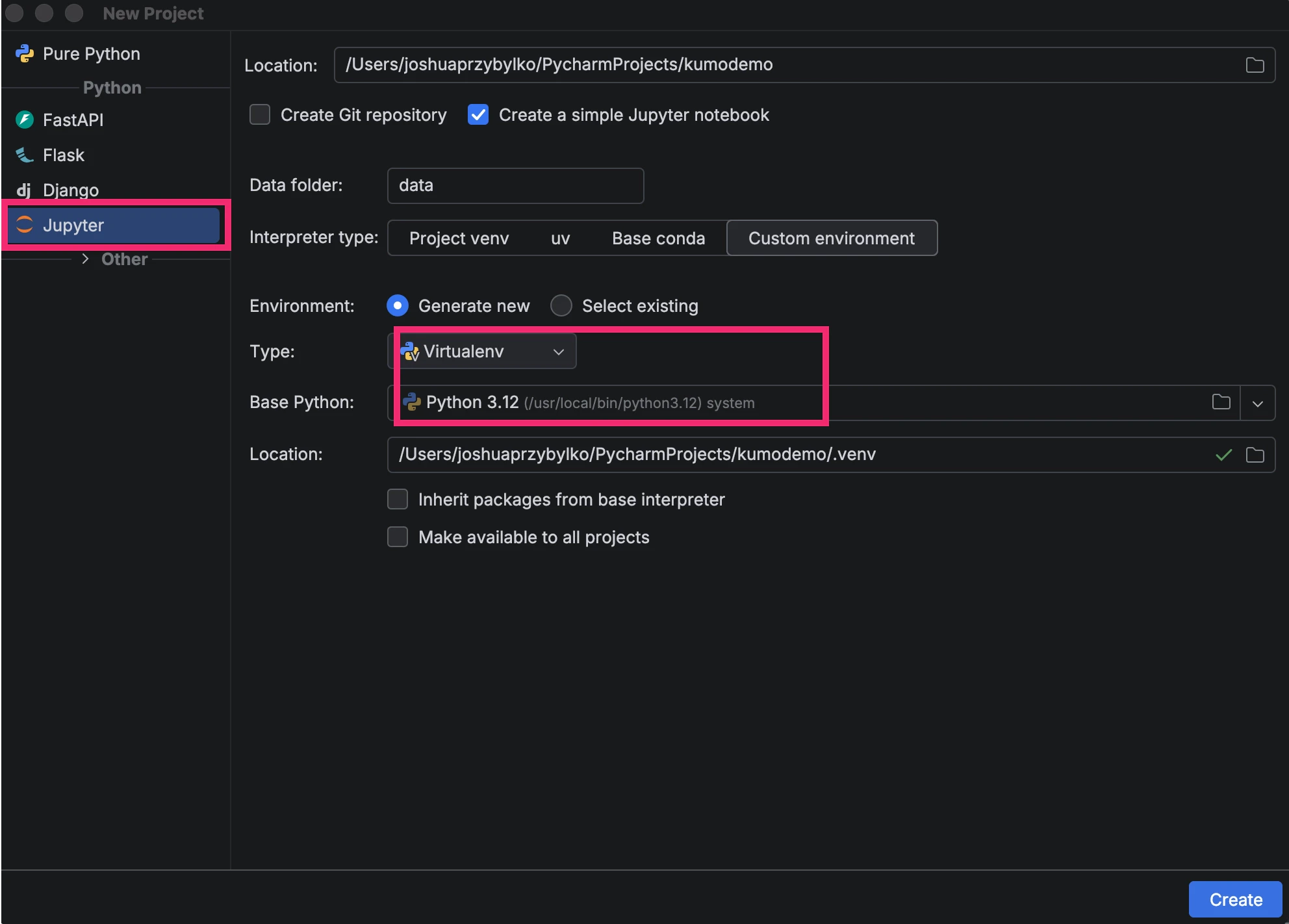
1. Create a new project
2. * Select or create a local python environment for the project
* Project type: Pure Python or Jupyter
* Environment type: `Venv` (recommended) or `Conda` (if the Anaconda distribution is installed)
* Select a Python version between **3.10** and **3.13**
 3. Create a notebook `.ipynb` file inside your project
4. Run a Cell (e.g., `print("Hello Kumo!")` to Start the Jupyter Server and notebook kernel
5. Install or upgrade ipywidgets
Pycharm will automatically install the required IPython but does not by default install related ipywidgets package, which may lead to downstream warnings
`📓 Notebook cell`
```python theme={null}
%pip install --upgrade jupyter ipywidgets
```
A project-specific interpreter keeps KumoSDK and notebook dependencies separate from your system Python and from unrelated projects.
### Step 2: Install KumoSDK
Install the KumoSDK in the same notebook environment:
`📓 Notebook cell`
```python theme={null}
%pip install kumoai
```
Using `%pip` instead of `!pip` helps ensure the package installs into the active notebook interpreter.
Verify installation:
`📓 Notebook cell`
```python theme={null}
import kumoai.rfm as rfm
print("Kumo SDK loaded successfully")
```
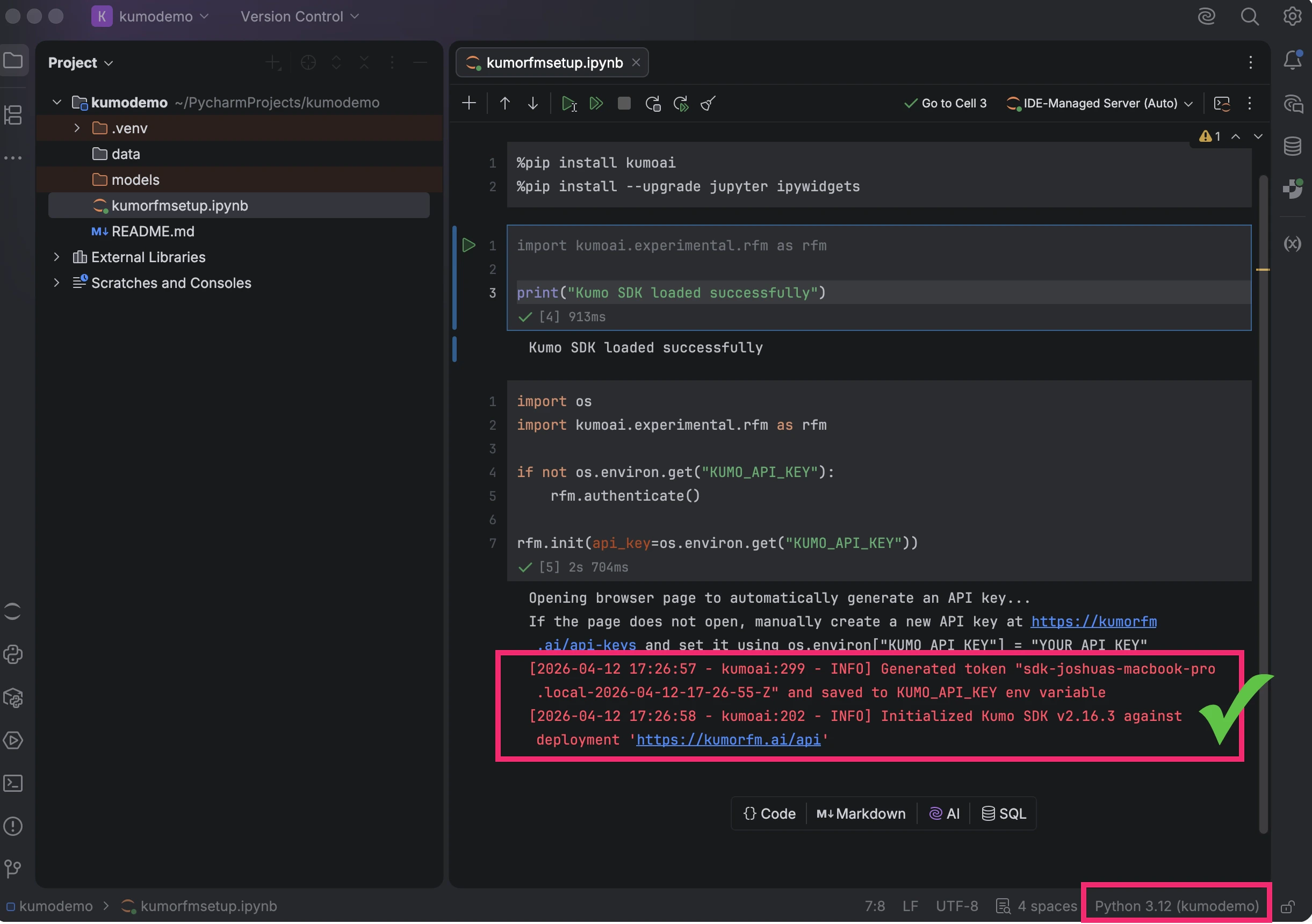
### Step 3: Authenticate KumoSDK
You will need an API key to make calls to KumoRFM.
There are two common approaches:
* Use the interactive code block below to set `KUMO_API_KEY` from the notebook
* Set `KUMO_API_KEY` manually with the API key provided for your KumoRFM environment
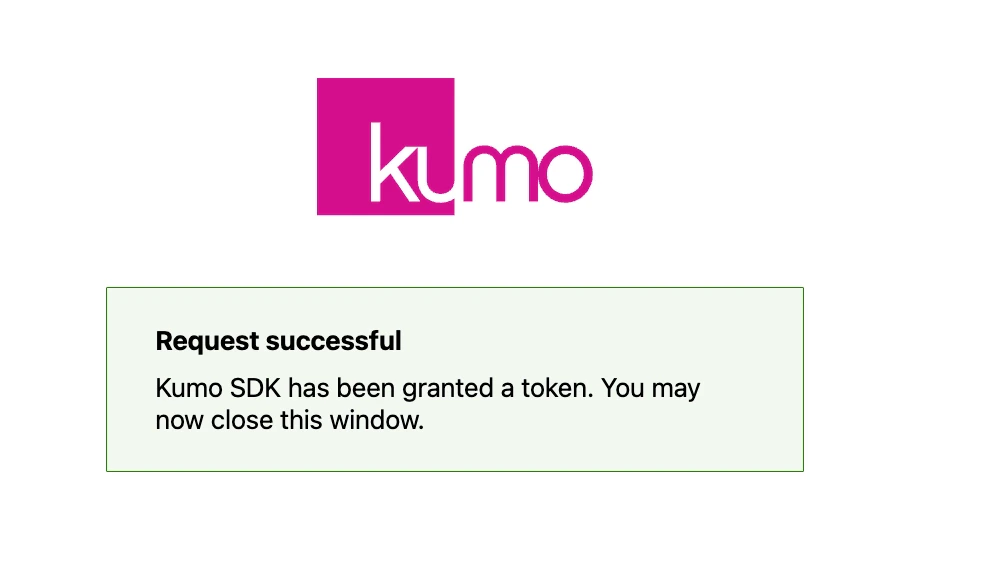
**Interactive authentication:**
`📓 Notebook cell`
```python theme={null}
import os
import kumoai.rfm as rfm
if not os.environ.get("KUMO_API_KEY"):
rfm.authenticate()
rfm.init(api_key=os.environ.get("KUMO_API_KEY"))
```
3. Create a notebook `.ipynb` file inside your project
4. Run a Cell (e.g., `print("Hello Kumo!")` to Start the Jupyter Server and notebook kernel
5. Install or upgrade ipywidgets
Pycharm will automatically install the required IPython but does not by default install related ipywidgets package, which may lead to downstream warnings
`📓 Notebook cell`
```python theme={null}
%pip install --upgrade jupyter ipywidgets
```
A project-specific interpreter keeps KumoSDK and notebook dependencies separate from your system Python and from unrelated projects.
### Step 2: Install KumoSDK
Install the KumoSDK in the same notebook environment:
`📓 Notebook cell`
```python theme={null}
%pip install kumoai
```
Using `%pip` instead of `!pip` helps ensure the package installs into the active notebook interpreter.
Verify installation:
`📓 Notebook cell`
```python theme={null}
import kumoai.rfm as rfm
print("Kumo SDK loaded successfully")
```
### Step 3: Authenticate KumoSDK
You will need an API key to make calls to KumoRFM.
There are two common approaches:
* Use the interactive code block below to set `KUMO_API_KEY` from the notebook
* Set `KUMO_API_KEY` manually with the API key provided for your KumoRFM environment
**Interactive authentication:**
`📓 Notebook cell`
```python theme={null}
import os
import kumoai.rfm as rfm
if not os.environ.get("KUMO_API_KEY"):
rfm.authenticate()
rfm.init(api_key=os.environ.get("KUMO_API_KEY"))
```
 **Manual authentication:**
`📓 Notebook cell`
```python theme={null}
import os
import kumoai.rfm as rfm
os.environ["KUMO_API_KEY"] = "YOUR_API_KEY_HERE"
rfm.init(api_key=os.environ.get("KUMO_API_KEY"))
```
**Manual authentication:**
`📓 Notebook cell`
```python theme={null}
import os
import kumoai.rfm as rfm
os.environ["KUMO_API_KEY"] = "YOUR_API_KEY_HERE"
rfm.init(api_key=os.environ.get("KUMO_API_KEY"))
```
 ### Step 4: Optional Dependencies
#### Install Graphviz:
The KumoSDK allows you to define and visualize a **Kumo Graph**, which represents data tables and the relationships between them.
To enable Kumo Graph visualization with KumoSDK, the Graphviz library must be installed correctly.
Installation requires:
1. `dot` — an executable that is part of the Graphviz library, installed at the system level
2. The `graphviz` Python package installed in the notebook kernel
Check if `dot` is installed:
`📓 Notebook cell`
```python theme={null}
import shutil
print(shutil.which("dot"))
```
If this returns `None`, install Graphviz:
`🖥 Terminal`
```bash theme={null}
brew install graphviz
```
Install the Python package:
`📓 Notebook cell`
```python theme={null}
%pip install graphviz
```
Test that a simple graph renders:
`📓 Notebook cell`
```python theme={null}
from graphviz import Digraph
g = Digraph()
g.edge("Hello", "Kumo")
g
```
#### Install Jinja2:
The KumoSDK requires Jinja2, a Python library used to style displayed outputs.
`📓 Notebook cell`
```python theme={null}
%pip show Jinja2 # check if Jinja2 is installed
%pip install jinja2 # install
```
## Part 2: Add a Coding Agent (Optional)
Choose **one** of the following to add an AI coding agent to your workflow:
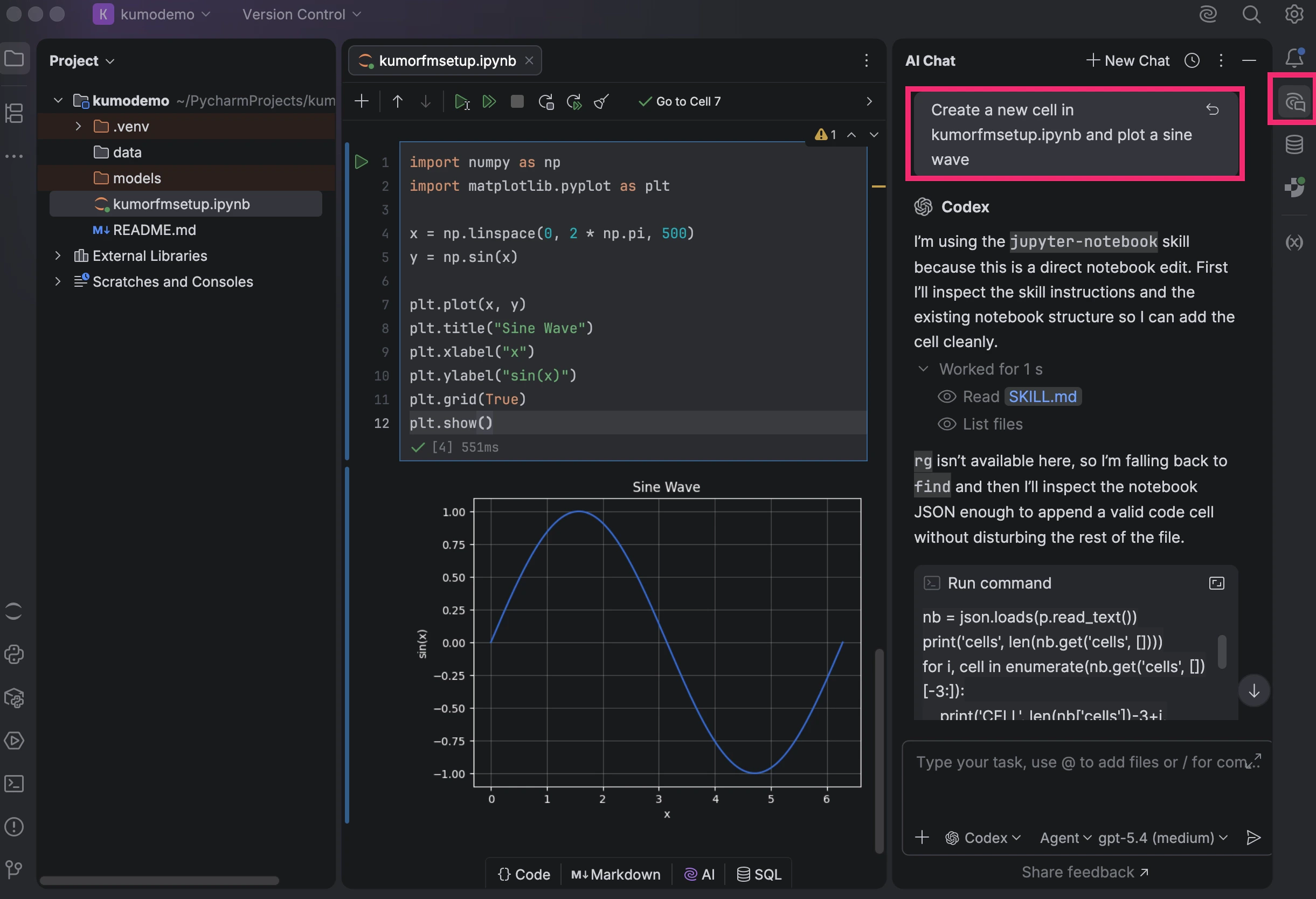
**Step 1: Open JetBrains AI and Select Codex**
JetBrains documents that Codex is available directly in JetBrains AI chat starting from IDE version `2025.3`. Make sure you are using a recent PyCharm version and the latest [AI Assistant plugin](https://plugins.jetbrains.com/plugin/22282-jetbrains-ai-assistant) (enabled by default).
To get started:
1. Open the **JetBrains AI** widget in the top-right corner of PyCharm
2. Follow the setup and authentication flow if JetBrains AI subscription or OpenAI subscription has not been enabled yet
3. Open the AI chat and choose **Codex** from the agent picker
### Step 4: Optional Dependencies
#### Install Graphviz:
The KumoSDK allows you to define and visualize a **Kumo Graph**, which represents data tables and the relationships between them.
To enable Kumo Graph visualization with KumoSDK, the Graphviz library must be installed correctly.
Installation requires:
1. `dot` — an executable that is part of the Graphviz library, installed at the system level
2. The `graphviz` Python package installed in the notebook kernel
Check if `dot` is installed:
`📓 Notebook cell`
```python theme={null}
import shutil
print(shutil.which("dot"))
```
If this returns `None`, install Graphviz:
`🖥 Terminal`
```bash theme={null}
brew install graphviz
```
Install the Python package:
`📓 Notebook cell`
```python theme={null}
%pip install graphviz
```
Test that a simple graph renders:
`📓 Notebook cell`
```python theme={null}
from graphviz import Digraph
g = Digraph()
g.edge("Hello", "Kumo")
g
```
#### Install Jinja2:
The KumoSDK requires Jinja2, a Python library used to style displayed outputs.
`📓 Notebook cell`
```python theme={null}
%pip show Jinja2 # check if Jinja2 is installed
%pip install jinja2 # install
```
## Part 2: Add a Coding Agent (Optional)
Choose **one** of the following to add an AI coding agent to your workflow:
**Step 1: Open JetBrains AI and Select Codex**
JetBrains documents that Codex is available directly in JetBrains AI chat starting from IDE version `2025.3`. Make sure you are using a recent PyCharm version and the latest [AI Assistant plugin](https://plugins.jetbrains.com/plugin/22282-jetbrains-ai-assistant) (enabled by default).
To get started:
1. Open the **JetBrains AI** widget in the top-right corner of PyCharm
2. Follow the setup and authentication flow if JetBrains AI subscription or OpenAI subscription has not been enabled yet
3. Open the AI chat and choose **Codex** from the agent picker
 **Step 2: Install Kumo Coding Agent Context**
The Kumo Coding Agent has two parts:
* **Context** (knowledge base): Documentation, PQL rules, workflow guides, and data connector references that teach the agent how to use the Kumo platform. Installed by cloning the repository.
* **Skills** (slash commands): Actions like `/kumo-issue` and `/kumo-pr` for reporting bugs and contributing fixes. Installed via the skill installer.
**Install the context:**
`🖥 Terminal`
```bash theme={null}
cd your-project
git clone https://github.com/kumo-ai/kumo-coding-agent.git kumo-coding-agent
```
This action adds a directory named `kumo-coding-agent` to your project. It contains the Kumo Coding Agent's knowledge base. Confirm that this directory appears in your project.
Codex reads `AGENTS.md` automatically. No extra configuration needed.
**Install the skills (optional).**
Inside a Codex session or chat interface, run the following command and approve the requested actions:
`🤖 Codex`
```text theme={null}
$skill-installer install https://github.com/kumo-ai/kumo-coding-agent
```
To confirm the Kumo slash-command skills were installed correctly, list the available skills and look for:
* `/kumo-issue` to report an issue to Kumo
* `/kumo-pr` to contribute fixes
`🤖 Codex`
```text theme={null}
/skills
```
**Step 3: Use the Kumo Coding Agent**
Try a real prediction:
`🤖 Codex`
```text wrap-code theme={null}
Use the active VS Code notebook with the kumo-coding-agent skill to load the RelBench F1 dataset and use KumoRFM to predict whether each driver will finish in the top 3 in their next race.
```
The agent will inspect the data, build a graph, and write PQL. You can then run the notebook end-to-end. If needed, authenticate the KumoSDK within the notebook before running the prediction.
Before asking Codex to modify the notebook, save your changes first. If the notebook is not saved, PyCharm may keep your unsaved version as the active notebook view and treat Codex's edits as the previous file version. If you do not see Codex's changes, try one of the following:
* Use the "Revert File" option in PyCharm to refresh the notebook (`Cmd + Shift + P` -> `Revert File`)
* Close the notebook tab and reopen it
You are now fully set up with KumoSDK and the Kumo Coding Agent. You can proceed to:
* the Kumo `Coding Agent Quick Start` for coding agent examples
* the Kumo `SDK Quick Start` to get familiar with core SDK functionality
**Step 4 (Optional): Upgrade**
**Upgrade the KumoSDK:**
`📓 Notebook cell`
```python theme={null}
%pip install --upgrade kumoai
```
**Upgrade the Kumo Coding Agent:**
`🖥 Terminal`
```bash theme={null}
cd kumo-coding-agent && git pull
```
To pin to a specific version:
```bash theme={null}
cd kumo-coding-agent && git checkout v1.0.0
```
**Step 1: Open Claude Code Alongside PyCharm**
Claude Code is best used here as a project-aware coding assistant that runs alongside PyCharm rather than inside the notebook UI itself.
The simplest pattern looks like this:
1. Keep the notebook open in PyCharm
2. Open a terminal in the same project folder
3. Run Claude Code there
**Step 2: Install Kumo Coding Agent**
The Kumo Coding Agent has two parts:
* **Context** (knowledge base): Documentation, PQL rules, workflow guides, and data connector references that teach the agent how to use the Kumo platform. Install this by cloning the repository into your project.
* **Skills** (slash commands): Actions like `/kumo-issue` and `/kumo-pr` for reporting bugs and contributing fixes. These can be installed separately if you want them.
**Install the context:**
`🖥 Terminal`
```bash theme={null}
cd your-project
git clone https://github.com/kumo-ai/kumo-coding-agent.git kumo-coding-agent
echo 'Also read kumo-coding-agent/CLAUDE.md for Kumo agent capabilities.' >> CLAUDE.md
```
This action adds a directory named `kumo-coding-agent` to your project. It contains the Kumo Coding Agent's knowledge base. Confirm that this directory appears in your project.
The second line tells Claude Code to read the agent's knowledge base on startup.
**Install the skills (optional):**
To run the following command, you will need Node.js installed on your system.
`🖥 Terminal`
```bash theme={null}
npx skills add kumo-ai/kumo-coding-agent --agent claude-code
```
**Step 3: Use Claude Code with the Notebook and Project**
Start with a setup-oriented prompt:
`✨ Claude`
```text theme={null}
Help me set up this PyCharm Jupyter notebook for KumoSDK and generate a first validation cell.
```
Then try a fuller prediction workflow:
`✨ Claude`
```text wrap-code theme={null}
Use the active PyCharm notebook and the kumo-coding-agent context in this project to load the RelBench F1 dataset and use KumoRFM to predict whether each driver will finish in the top 3 in their next race.
```
The agent can inspect the notebook and nearby project files, help build a graph, and draft PQL. You can then run the notebook end-to-end in PyCharm. If needed, authenticate the KumoSDK within the notebook before running the prediction.
Before asking Claude to modify the notebook, save your changes first. If the notebook is not saved, PyCharm may keep your unsaved version as the active view and you may not immediately see the agent's edits. If needed, save the notebook again or close and reopen it before continuing.
You are now fully set up with KumoSDK and the Kumo Coding Agent in PyCharm. You can proceed to:
* the Kumo `Coding Agent Quick Start` for coding agent examples
* the Kumo `SDK Quick Start` to get familiar with core SDK functionality
**Step 4 (Optional): Upgrade**
**Upgrade the KumoSDK:**
`📓 Notebook cell`
```python theme={null}
%pip install --upgrade kumoai
```
**Upgrade the Kumo Coding Agent:**
`🖥 Terminal`
```bash theme={null}
cd kumo-coding-agent && git pull
```
To pin to a specific version:
```bash theme={null}
cd kumo-coding-agent && git checkout v1.0.0
```
## Troubleshooting
* If the notebook opens but cells do not run, re-check the selected interpreter and whether the Jupyter server started successfully.
* If `%pip install kumoai` succeeds but `import kumoai.rfm` fails, verify that the notebook is using the same interpreter where the package was installed.
* If authentication fails, confirm `KUMO_API_KEY` is set or repeat `rfm.authenticate()`.
* If Codex is not available in PyCharm, verify your PyCharm version, the AI Assistant plugin version, and that Codex appears in the JetBrains AI agent picker.
* If Claude Code helps with project files but not notebook behavior, keep notebook execution inside PyCharm and use Claude Code mainly for project-side code and explanations.
## Next Steps
* [Data Requirements](/rfm/data-requirements)
* [Make Predictions](/rfm/make-predictions)
* [Snowflake Notebooks](/rfm/setup/snowflake-notebooks)
* [SDK Getting Started](/rfm/sdk-getting-started)
**Step 2: Install Kumo Coding Agent Context**
The Kumo Coding Agent has two parts:
* **Context** (knowledge base): Documentation, PQL rules, workflow guides, and data connector references that teach the agent how to use the Kumo platform. Installed by cloning the repository.
* **Skills** (slash commands): Actions like `/kumo-issue` and `/kumo-pr` for reporting bugs and contributing fixes. Installed via the skill installer.
**Install the context:**
`🖥 Terminal`
```bash theme={null}
cd your-project
git clone https://github.com/kumo-ai/kumo-coding-agent.git kumo-coding-agent
```
This action adds a directory named `kumo-coding-agent` to your project. It contains the Kumo Coding Agent's knowledge base. Confirm that this directory appears in your project.
Codex reads `AGENTS.md` automatically. No extra configuration needed.
**Install the skills (optional).**
Inside a Codex session or chat interface, run the following command and approve the requested actions:
`🤖 Codex`
```text theme={null}
$skill-installer install https://github.com/kumo-ai/kumo-coding-agent
```
To confirm the Kumo slash-command skills were installed correctly, list the available skills and look for:
* `/kumo-issue` to report an issue to Kumo
* `/kumo-pr` to contribute fixes
`🤖 Codex`
```text theme={null}
/skills
```
**Step 3: Use the Kumo Coding Agent**
Try a real prediction:
`🤖 Codex`
```text wrap-code theme={null}
Use the active VS Code notebook with the kumo-coding-agent skill to load the RelBench F1 dataset and use KumoRFM to predict whether each driver will finish in the top 3 in their next race.
```
The agent will inspect the data, build a graph, and write PQL. You can then run the notebook end-to-end. If needed, authenticate the KumoSDK within the notebook before running the prediction.
Before asking Codex to modify the notebook, save your changes first. If the notebook is not saved, PyCharm may keep your unsaved version as the active notebook view and treat Codex's edits as the previous file version. If you do not see Codex's changes, try one of the following:
* Use the "Revert File" option in PyCharm to refresh the notebook (`Cmd + Shift + P` -> `Revert File`)
* Close the notebook tab and reopen it
You are now fully set up with KumoSDK and the Kumo Coding Agent. You can proceed to:
* the Kumo `Coding Agent Quick Start` for coding agent examples
* the Kumo `SDK Quick Start` to get familiar with core SDK functionality
**Step 4 (Optional): Upgrade**
**Upgrade the KumoSDK:**
`📓 Notebook cell`
```python theme={null}
%pip install --upgrade kumoai
```
**Upgrade the Kumo Coding Agent:**
`🖥 Terminal`
```bash theme={null}
cd kumo-coding-agent && git pull
```
To pin to a specific version:
```bash theme={null}
cd kumo-coding-agent && git checkout v1.0.0
```
**Step 1: Open Claude Code Alongside PyCharm**
Claude Code is best used here as a project-aware coding assistant that runs alongside PyCharm rather than inside the notebook UI itself.
The simplest pattern looks like this:
1. Keep the notebook open in PyCharm
2. Open a terminal in the same project folder
3. Run Claude Code there
**Step 2: Install Kumo Coding Agent**
The Kumo Coding Agent has two parts:
* **Context** (knowledge base): Documentation, PQL rules, workflow guides, and data connector references that teach the agent how to use the Kumo platform. Install this by cloning the repository into your project.
* **Skills** (slash commands): Actions like `/kumo-issue` and `/kumo-pr` for reporting bugs and contributing fixes. These can be installed separately if you want them.
**Install the context:**
`🖥 Terminal`
```bash theme={null}
cd your-project
git clone https://github.com/kumo-ai/kumo-coding-agent.git kumo-coding-agent
echo 'Also read kumo-coding-agent/CLAUDE.md for Kumo agent capabilities.' >> CLAUDE.md
```
This action adds a directory named `kumo-coding-agent` to your project. It contains the Kumo Coding Agent's knowledge base. Confirm that this directory appears in your project.
The second line tells Claude Code to read the agent's knowledge base on startup.
**Install the skills (optional):**
To run the following command, you will need Node.js installed on your system.
`🖥 Terminal`
```bash theme={null}
npx skills add kumo-ai/kumo-coding-agent --agent claude-code
```
**Step 3: Use Claude Code with the Notebook and Project**
Start with a setup-oriented prompt:
`✨ Claude`
```text theme={null}
Help me set up this PyCharm Jupyter notebook for KumoSDK and generate a first validation cell.
```
Then try a fuller prediction workflow:
`✨ Claude`
```text wrap-code theme={null}
Use the active PyCharm notebook and the kumo-coding-agent context in this project to load the RelBench F1 dataset and use KumoRFM to predict whether each driver will finish in the top 3 in their next race.
```
The agent can inspect the notebook and nearby project files, help build a graph, and draft PQL. You can then run the notebook end-to-end in PyCharm. If needed, authenticate the KumoSDK within the notebook before running the prediction.
Before asking Claude to modify the notebook, save your changes first. If the notebook is not saved, PyCharm may keep your unsaved version as the active view and you may not immediately see the agent's edits. If needed, save the notebook again or close and reopen it before continuing.
You are now fully set up with KumoSDK and the Kumo Coding Agent in PyCharm. You can proceed to:
* the Kumo `Coding Agent Quick Start` for coding agent examples
* the Kumo `SDK Quick Start` to get familiar with core SDK functionality
**Step 4 (Optional): Upgrade**
**Upgrade the KumoSDK:**
`📓 Notebook cell`
```python theme={null}
%pip install --upgrade kumoai
```
**Upgrade the Kumo Coding Agent:**
`🖥 Terminal`
```bash theme={null}
cd kumo-coding-agent && git pull
```
To pin to a specific version:
```bash theme={null}
cd kumo-coding-agent && git checkout v1.0.0
```
## Troubleshooting
* If the notebook opens but cells do not run, re-check the selected interpreter and whether the Jupyter server started successfully.
* If `%pip install kumoai` succeeds but `import kumoai.rfm` fails, verify that the notebook is using the same interpreter where the package was installed.
* If authentication fails, confirm `KUMO_API_KEY` is set or repeat `rfm.authenticate()`.
* If Codex is not available in PyCharm, verify your PyCharm version, the AI Assistant plugin version, and that Codex appears in the JetBrains AI agent picker.
* If Claude Code helps with project files but not notebook behavior, keep notebook execution inside PyCharm and use Claude Code mainly for project-side code and explanations.
## Next Steps
* [Data Requirements](/rfm/data-requirements)
* [Make Predictions](/rfm/make-predictions)
* [Snowflake Notebooks](/rfm/setup/snowflake-notebooks)
* [SDK Getting Started](/rfm/sdk-getting-started)
