> ## Documentation Index
> Fetch the complete documentation index at: https://kumo.ai/docs/llms.txt
> Use this file to discover all available pages before exploring further.
# Local Upload
Kumo allows you to create tables by uploading **Parquet** or **CSV** files directly from your local machine, or from a cloud storage that your local machine can access (S3, GCS, Azure Blob/ADLS). This method **bypasses connector setup** and goes straight to table creation.
## Uploading a Local File
You can upload files of up to 1GB directly from the Kumo Web Interface.
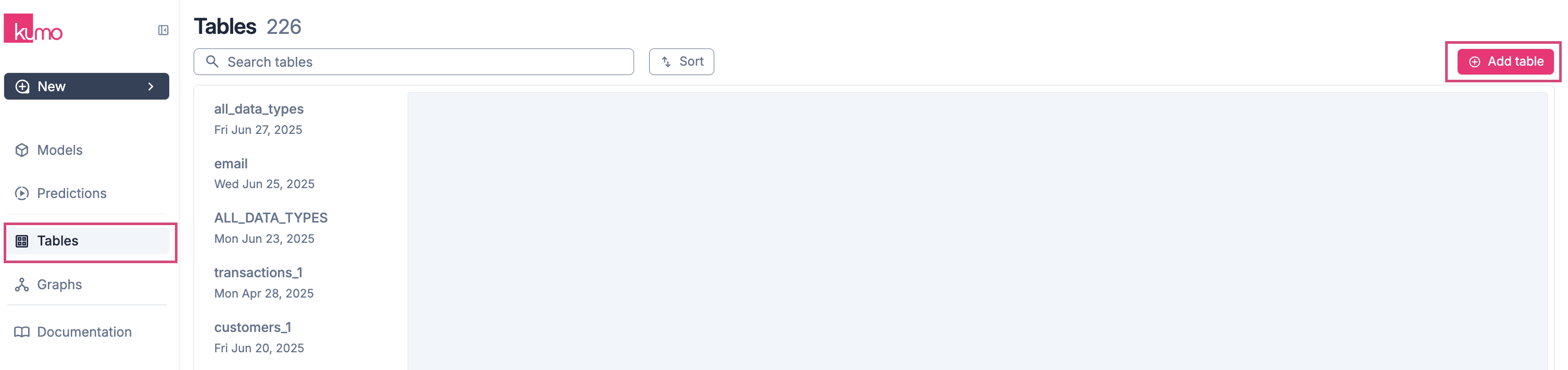
1. Navigate to **Tables** in the side menu and click **Add Table**.
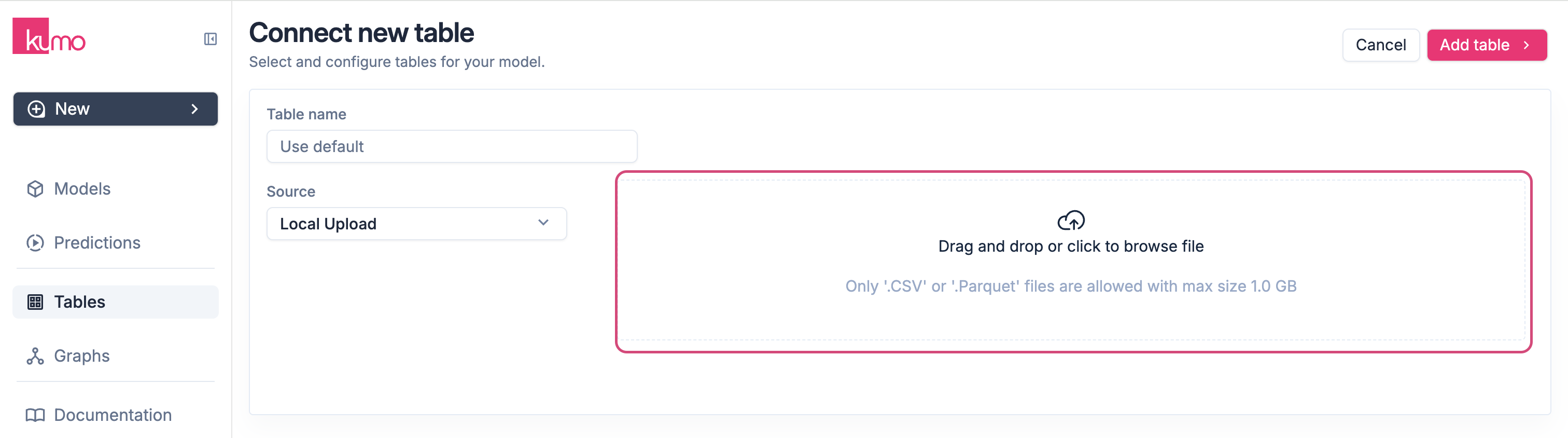
 2. Select **Local Upload** from the **Source** drop-down menu.
3. Drag and drop your file, or click **Browse** to select a file from your computer.
2. Select **Local Upload** from the **Source** drop-down menu.
3. Drag and drop your file, or click **Browse** to select a file from your computer.
 **Note:** CSV files must contain more than **one column**.
4. Click **Upload** to start the file upload process.
**Note:** CSV files must contain more than **one column**.
4. Click **Upload** to start the file upload process.
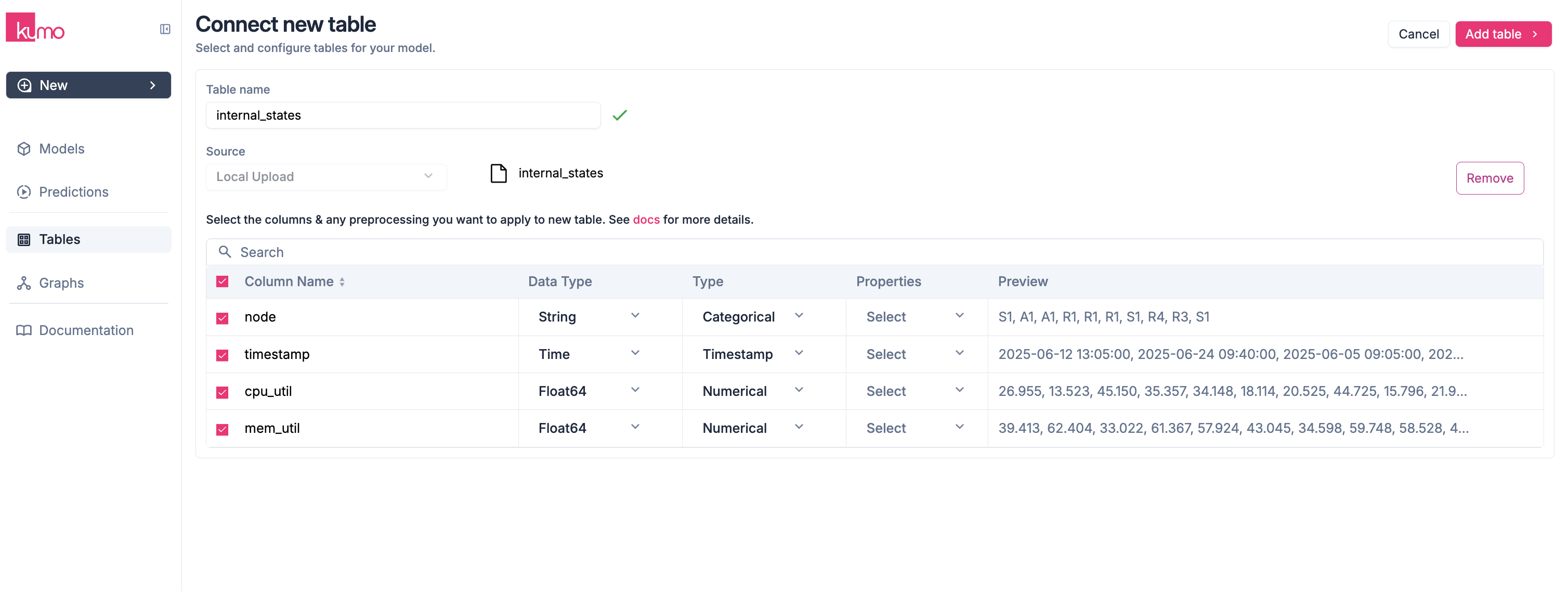
 5. Once the upload is complete, Kumo will display the table's columns and preprocessing options.
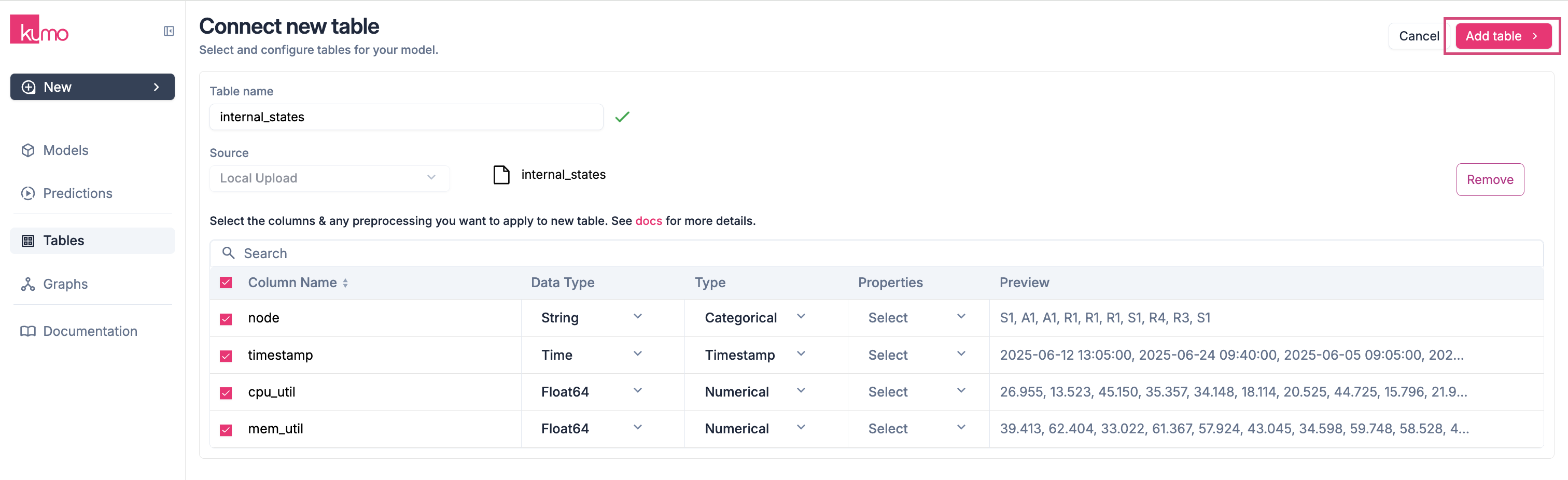
 6. Click **Add Table** to finalize your table.
 ## Upload via SDK (FileUploadConnector)
Use the SDK when you want to automate uploads, handle datasets up to 300GB in size, or upload from cloud storage (S3, GCS, Azure Blob/ADLS).
### Quick examples
#### Local file system (single file)
```python theme={null}
import kumoai
# Create a Parquet upload connector and push a table
conn = kumoai.FileUploadConnector(file_type="parquet")
conn.upload(name="users", path="/data/users.parquet")
# Confirm the table is available
assert conn.has_table("users")
# Clean up if needed
conn.delete(name="users")
```
#### Partitioned S3 directory (sharded dataset)
```python theme={null}
import kumoai
# Create a CSV upload connector and push a partitioned dataset from S3.
# The path should point at a directory/prefix containing many CSV shards, e.g.:
# s3://my-bucket/events/part-0000.csv
# s3://my-bucket/events/part-0001.csv
# s3://my-bucket/events/part-0002.csv
conn = kumoai.FileUploadConnector(file_type="csv")
conn.upload(name="events", path="s3://my-bucket/events/")
# Confirm the table is available
assert conn.has_table("events")
```
### Capabilities
* Accepts Parquet or CSV; choose the format when constructing the connector.
* Supports **single-file uploads up to 1GB**.
* Supports **sharded Parquet/CSV directory uploads up to 300GB** (local paths or cloud prefixes).
* Remote paths supported: `s3://`, `gs://`, `abfs://`, `abfss://`, `az://`.
* Directory uploads are treated as a dataset: Kumo discovers shards under the prefix and ingests them as one logical table.
* All shards within a direction must have the same schema (aligned columns and types).
* Column names must only contain alphanumeric characters (no spaces or punctuation).
* Tables are addressable via `connector["table_name"]` once uploaded.
See the full SDK reference for options and behaviors: [FileUploadConnector docs](/sdk/kumoai-connector#fileuploadconnector).
## Upload via SDK (FileUploadConnector)
Use the SDK when you want to automate uploads, handle datasets up to 300GB in size, or upload from cloud storage (S3, GCS, Azure Blob/ADLS).
### Quick examples
#### Local file system (single file)
```python theme={null}
import kumoai
# Create a Parquet upload connector and push a table
conn = kumoai.FileUploadConnector(file_type="parquet")
conn.upload(name="users", path="/data/users.parquet")
# Confirm the table is available
assert conn.has_table("users")
# Clean up if needed
conn.delete(name="users")
```
#### Partitioned S3 directory (sharded dataset)
```python theme={null}
import kumoai
# Create a CSV upload connector and push a partitioned dataset from S3.
# The path should point at a directory/prefix containing many CSV shards, e.g.:
# s3://my-bucket/events/part-0000.csv
# s3://my-bucket/events/part-0001.csv
# s3://my-bucket/events/part-0002.csv
conn = kumoai.FileUploadConnector(file_type="csv")
conn.upload(name="events", path="s3://my-bucket/events/")
# Confirm the table is available
assert conn.has_table("events")
```
### Capabilities
* Accepts Parquet or CSV; choose the format when constructing the connector.
* Supports **single-file uploads up to 1GB**.
* Supports **sharded Parquet/CSV directory uploads up to 300GB** (local paths or cloud prefixes).
* Remote paths supported: `s3://`, `gs://`, `abfs://`, `abfss://`, `az://`.
* Directory uploads are treated as a dataset: Kumo discovers shards under the prefix and ingests them as one logical table.
* All shards within a direction must have the same schema (aligned columns and types).
* Column names must only contain alphanumeric characters (no spaces or punctuation).
* Tables are addressable via `connector["table_name"]` once uploaded.
See the full SDK reference for options and behaviors: [FileUploadConnector docs](/sdk/kumoai-connector#fileuploadconnector).