> ## Documentation Index
> Fetch the complete documentation index at: https://kumo.ai/docs/llms.txt
> Use this file to discover all available pages before exploring further.
# Create Graph
## Graph Setup
After connecting your tables, the next step is to **link them into a graph schema** to enable predictions. This step is crucial, as these relationships define how Kumo derives meaningful input signals.
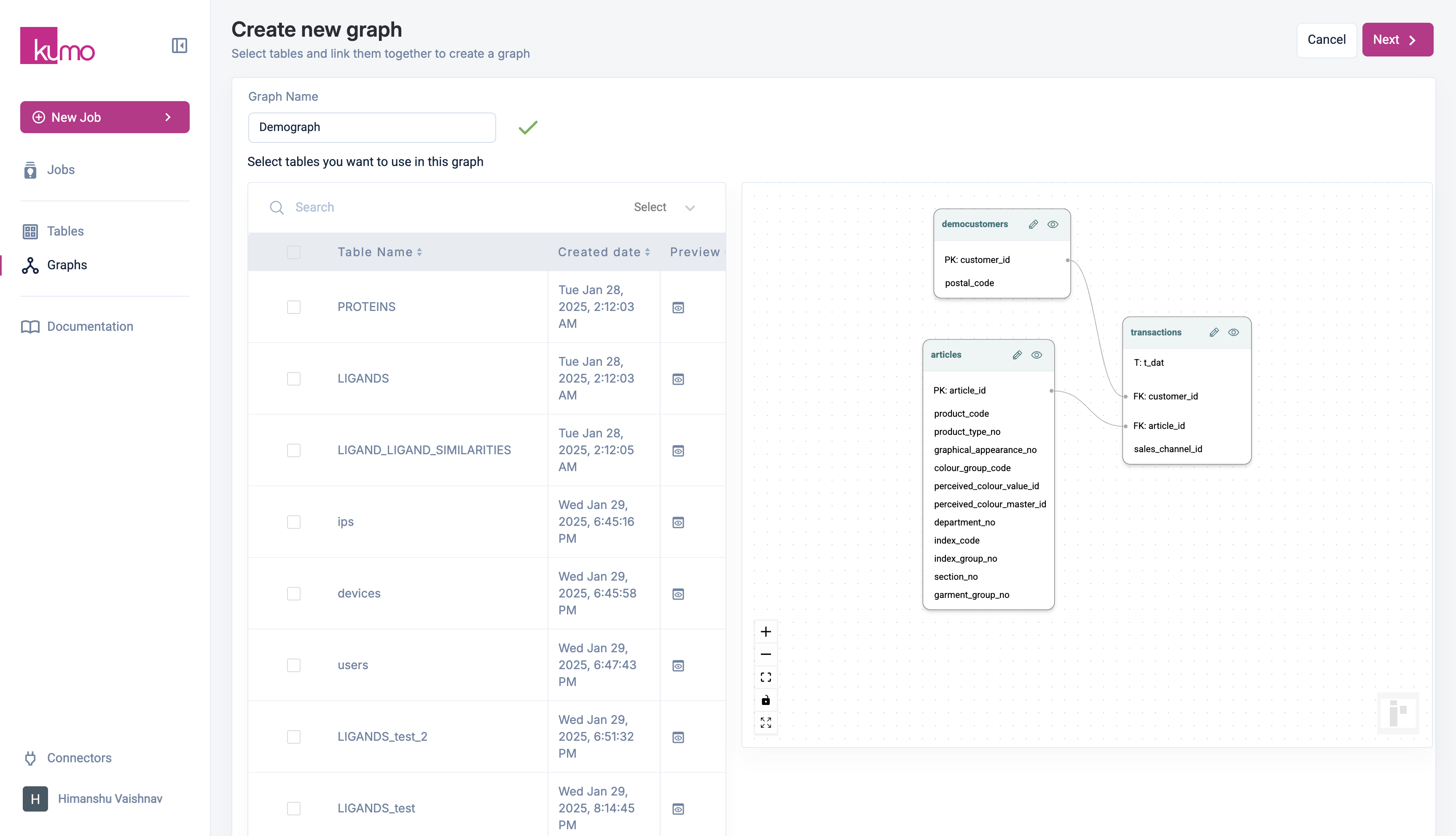
* To begin, navigate to the **Graph** and click **Create Graph**.
* Select the tables to include. As you add tables, you can see the graph on the right pane.
* Click **Next** to proceed.
 ## Table Linkages
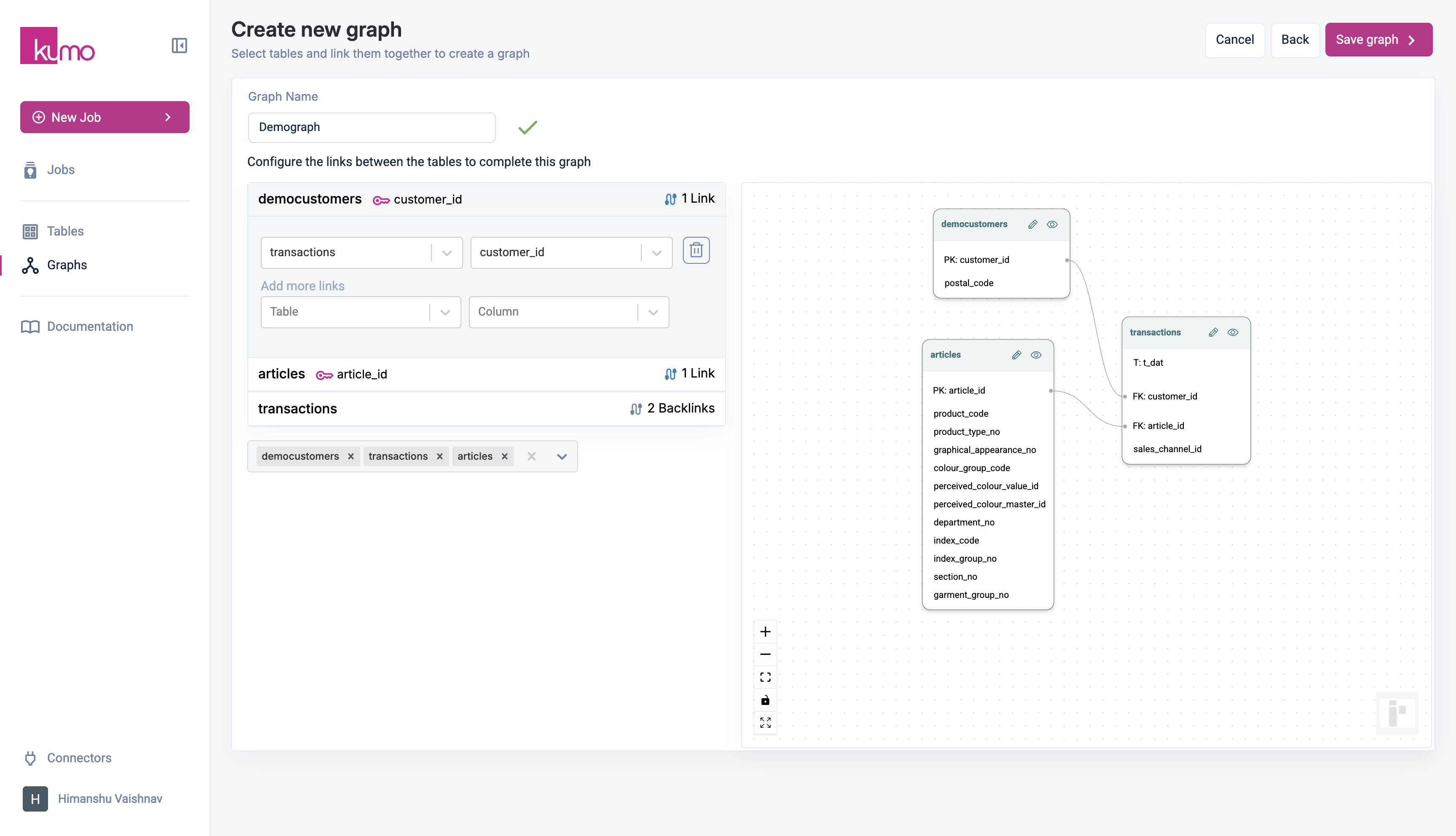
Once tables are selected, link them by specifying **key (ID) columns** that define relationships between tables. These links help Kumo understand the structure of your data for making predictions.
* **`Links`** – Created when linking a primary key column to another table's foreign key column.
* **`Backlinks`** – Appear when a table is referenced by other tables, indicating relationships originating from that table.
For an e-commerce dataset, you might link:
* **Customer ID** between `customers` and `transactions`.
* **Transaction ID** between `transactions` and `articles`.
## Table Linkages
Once tables are selected, link them by specifying **key (ID) columns** that define relationships between tables. These links help Kumo understand the structure of your data for making predictions.
* **`Links`** – Created when linking a primary key column to another table's foreign key column.
* **`Backlinks`** – Appear when a table is referenced by other tables, indicating relationships originating from that table.
For an e-commerce dataset, you might link:
* **Customer ID** between `customers` and `transactions`.
* **Transaction ID** between `transactions` and `articles`.
 ## Table Linkage Considerations
Kumo automatically suggests links **matching column names across tables**. These linkages appear as **dotted lines** in the graph visualization.
When creating table links, keep in mind:
* **Timestamps do not need manual linking**—Kumo automatically detects them.
* If two linked columns have different types, both are **cast to strings**—ensure values still match after casting.
* **Rows with missing key values** are ignored when creating linkages.
* **Rows with unmatched key values** across tables are also ignored.
To adjust linkages:
* Click **Table Name** to modify a forward link.
* Select tables and column names to add links or Delete icon to remove links.
* Click **Save Graph** to finalize your schema.
### Verifying Your Graph Linkages
After creating your graph, Kumo will route you to the graph detail page where you can analyze insights regarding your new graph's connectivity.
The "Graph Link Health" table on the bottom of the page contains health metrics that display the match percentages between each pair of linked tables. Lower-than-expected percentages may be symptoms of poor data quality or incorrect column pairings.
## Table Linkage Considerations
Kumo automatically suggests links **matching column names across tables**. These linkages appear as **dotted lines** in the graph visualization.
When creating table links, keep in mind:
* **Timestamps do not need manual linking**—Kumo automatically detects them.
* If two linked columns have different types, both are **cast to strings**—ensure values still match after casting.
* **Rows with missing key values** are ignored when creating linkages.
* **Rows with unmatched key values** across tables are also ignored.
To adjust linkages:
* Click **Table Name** to modify a forward link.
* Select tables and column names to add links or Delete icon to remove links.
* Click **Save Graph** to finalize your schema.
### Verifying Your Graph Linkages
After creating your graph, Kumo will route you to the graph detail page where you can analyze insights regarding your new graph's connectivity.
The "Graph Link Health" table on the bottom of the page contains health metrics that display the match percentages between each pair of linked tables. Lower-than-expected percentages may be symptoms of poor data quality or incorrect column pairings.
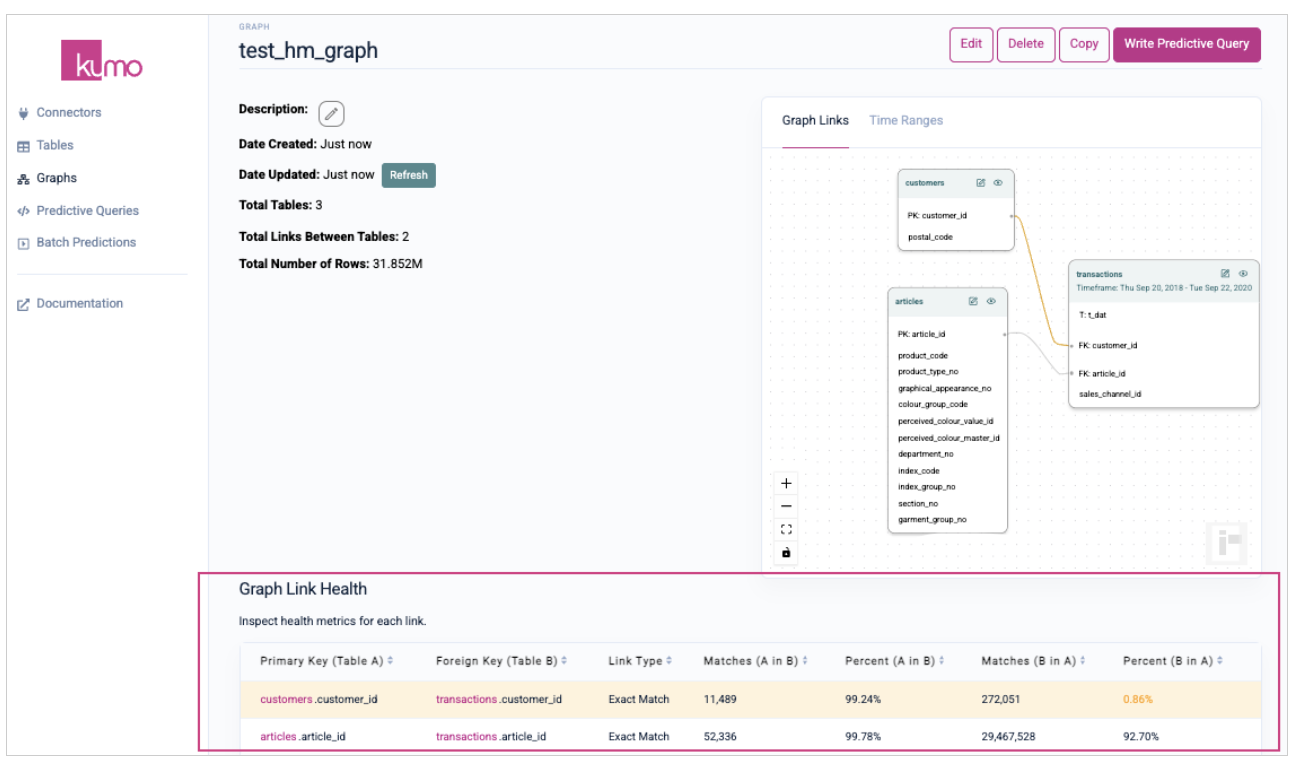 If your graph is in line with expectations, click the `Write Predictive Query` button to start creating your predictive queries.
### **Modifying Tables When Creating/Updating Graphs**
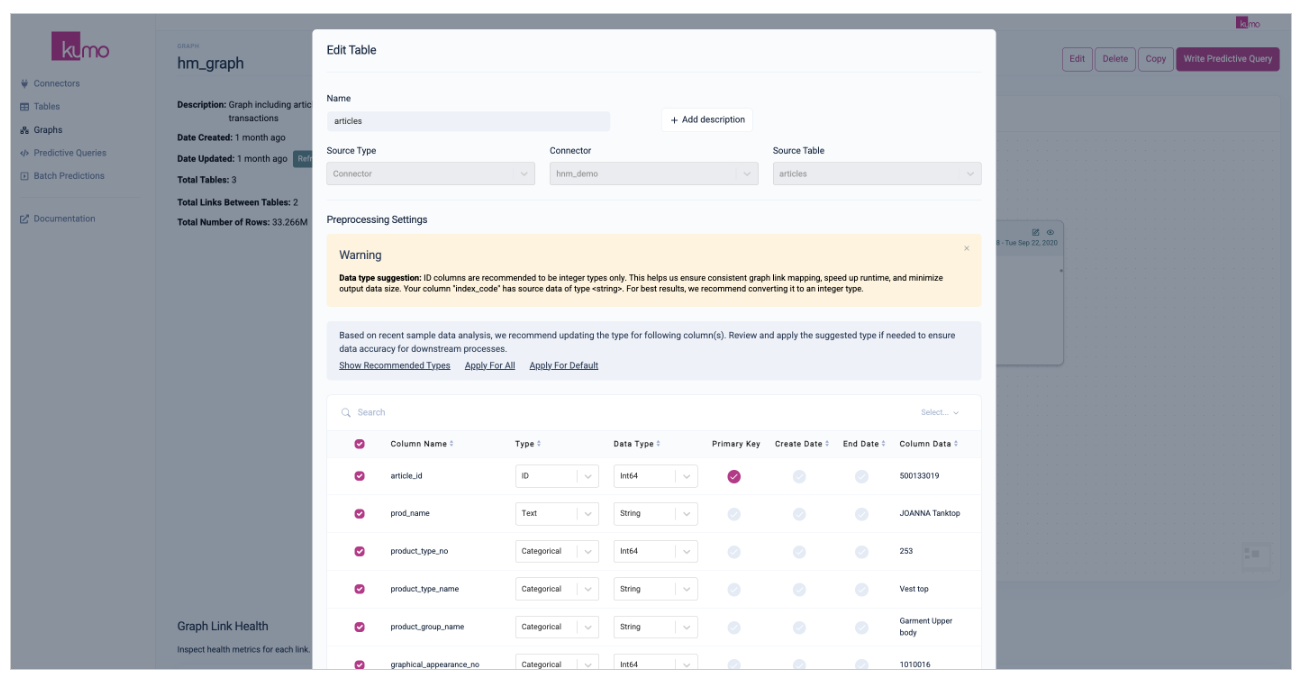
If table modifications are required during the graph creation/editing process, you can make the necessary table changes directly from the "Graph" page. This may come in handy on various occasions when you need to make table changes/updates (e.g., you've forgotten to set a primary key or create date, or want to experiment with different column sets), but would like to avoid interrupting your graph creation/editing workflow.
On the right-hand side "Graph Links" pane of the "Graph" page, click the **Edit** (pencil) icon on the header of the table you would like to modify.
If your graph is in line with expectations, click the `Write Predictive Query` button to start creating your predictive queries.
### **Modifying Tables When Creating/Updating Graphs**
If table modifications are required during the graph creation/editing process, you can make the necessary table changes directly from the "Graph" page. This may come in handy on various occasions when you need to make table changes/updates (e.g., you've forgotten to set a primary key or create date, or want to experiment with different column sets), but would like to avoid interrupting your graph creation/editing workflow.
On the right-hand side "Graph Links" pane of the "Graph" page, click the **Edit** (pencil) icon on the header of the table you would like to modify.
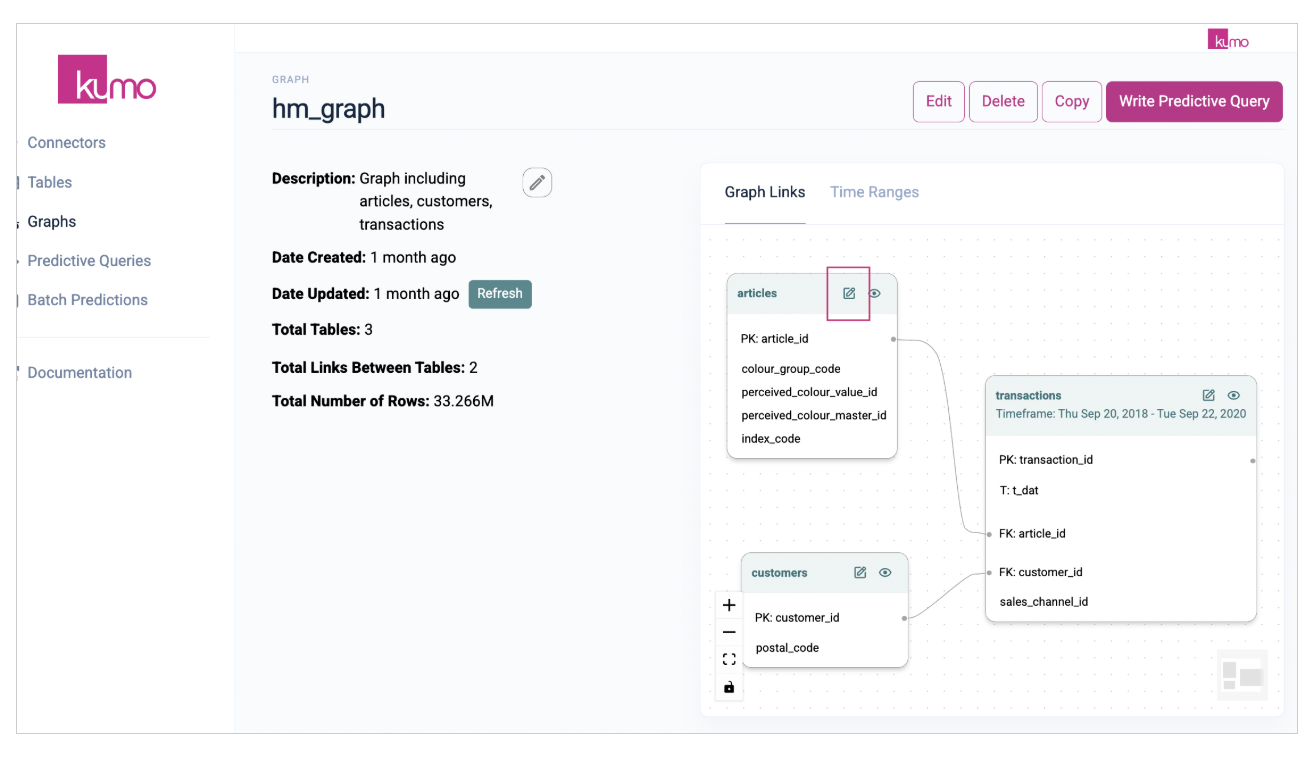 This will load the "Edit Table" modal window directly from the "Graph" page, where you can make the necessary tables changes/edits in place.
 ## Fixing Data Issues After Graph Creation
If you discover data quality issues after creating your graph:
* Fix issues in your source data.
* Kumo will automatically **re-ingest and reconnect** tables the next time you train a model.
## Fixing Data Issues After Graph Creation
If you discover data quality issues after creating your graph:
* Fix issues in your source data.
* Kumo will automatically **re-ingest and reconnect** tables the next time you train a model.